
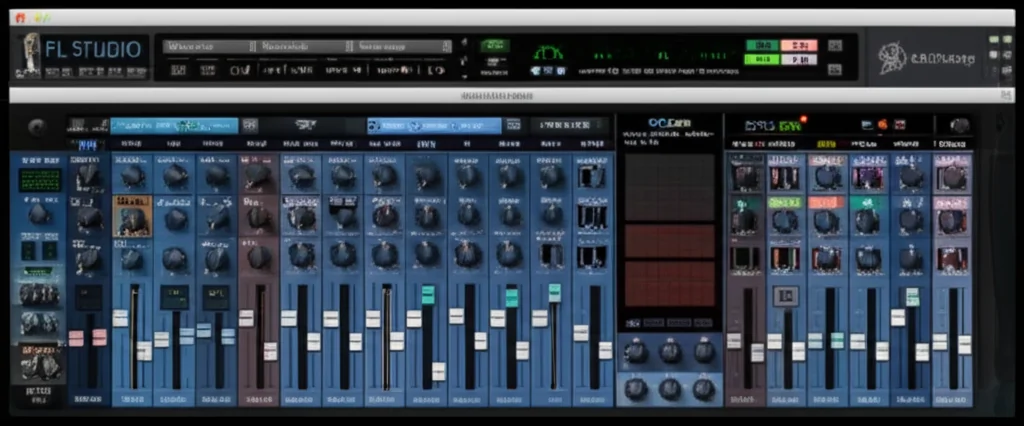
If you’ve ever opened FL Studio and felt overwhelmed by the sheer number of plugins staring back at you, you’re not alone. Our expert team at Uniphonic™ has spent countless hours dissecting, testing, and mastering every nook and cranny of FL Studio’s plugin universe. Whether you’re hunting for the perfect synth to craft your signature sound or an effects plugin to add that professional polish, this comprehensive list of 50+ FL Studio plugins will guide you through the maze with confidence and flair.
Did you know that FL Studio’s native plugins alone cover everything from granular synthesis to mastering-grade compressors? But that’s just the beginning. Later in this article, we reveal hidden gems and workflow hacks that even seasoned producers swear by. Curious about which plugins pros can’t live without or how to optimize your setup for peak performance? Stick around — we’ve got you covered.
Key Takeaways
- FL Studio offers a diverse range of native and third-party plugins, including over 25 essential generators and 25+ powerful effects to elevate your productions.
- Understanding the difference between generators (synths, samplers) and effects (reverb, EQ, compressors) is crucial for crafting your sound.
- Free plugins bundled with FL Studio are surprisingly powerful, but investing in select paid plugins like Sytrus, Harmor, or Xfer Serum can unlock new creative possibilities.
- Proper plugin management and optimization can drastically improve your workflow and system performance.
- Hidden gems and workflow tips revealed in this guide will help you get the most out of your plugin arsenal.
Ready to transform your beats and mixes? Dive into our detailed FL Studio plugins list and discover your new favorite tools today!
👉 Shop Top FL Studio Plugins:
- Image-Line Plugins: Amazon | Image-Line Official
- Xfer Serum: Plugin Boutique | Xfer Records Official
- Valhalla Reverbs: Plugin Boutique | Valhalla DSP Official
Table of Contents
- ⚡️ Quick Tips and Facts About FL Studio Plugins
- 🎹 The Evolution and History of FL Studio Plugins
- 🔍 Understanding FL Studio Plugin Types: Generators vs Effects
- 🎛️ Top 25 Must-Have FL Studio Generator Plugins for Music Production
- 🎚️ The Ultimate List of FL Studio Effects Plugins to Shape Your Sound
- 💡 Hidden Gems and Lesser-Known FL Studio Plugins You Should Try
- ⚙️ How to Install, Manage, and Optimize FL Studio Plugins for Peak Performance
- 🎧 FL Studio Plugin Compatibility: What Works on Windows and Mac?
- 🛠️ Troubleshooting Common FL Studio Plugin Issues and Fixes
- 💸 Free vs Paid FL Studio Plugins: What’s Worth Your Investment?
- 🎵 How to Choose the Best FL Studio Plugins for Your Music Style
- 🚀 Boost Your Workflow: FL Studio Plugin Tips and Workflow Hacks
- 📈 FL Studio Plugin Updates and Future Trends to Watch
- 🧠 Expert Insights: What the Pros Say About FL Studio Plugins
- 🔗 Recommended Links for FL Studio Plugins and Resources
- ❓ Frequently Asked Questions About FL Studio Plugins
- 📚 Reference Links and Further Reading on FL Studio Plugins
Quick Tips and Facts About FL Studio Plugins
FL Studio plugins are a crucial part of the music production process, offering a wide range of tools to shape and enhance your sound. Here are some quick tips and facts to get you started:
- Free vs Paid Plugins: FL Studio offers a mix of free and paid plugins, with the free options providing a solid foundation for music production.
- Plugin Formats: FL Studio supports various plugin formats, including VST, VST3, AU, AAX, and RTAS.
- Plugin Management: Managing your plugins is essential for a smooth workflow. You can use the Plugin Manager in FL Studio to organize and update your plugins.
- Plugin Presets: Many plugins come with presets that can help you get started with your sound design. You can also create and save your own presets for later use.
Plugin Types
FL Studio plugins can be broadly categorized into two types: Generators and Effects.
- Generators: These plugins are used to create sound from scratch. Examples include synthesizers, drum machines, and samplers.
- Effects: These plugins are used to process and enhance existing sound. Examples include reverb, delay, distortion, and EQ.
The Evolution and History of FL Studio Plugins

FL Studio has a long history of plugin development, with the first version of the software released in 1997. Over the years, the plugin suite has expanded to include a wide range of tools for music production.
- Early Days: In the early days, FL Studio plugins were basic and limited in their functionality. However, they provided a solid foundation for music production.
- Plugin Expansion: As FL Studio evolved, the plugin suite expanded to include more advanced tools, such as Sytrus and Harmless.
- Current State: Today, FL Studio offers a vast array of plugins, including Generators, Effects, and Utilities.
Understanding FL Studio Plugin Types: Generators vs Effects
Understanding the different types of FL Studio plugins is essential for effective music production. Here’s a breakdown of the main plugin types:
- Generators: These plugins are used to create sound from scratch. Examples include:
- 3x Osc: A basic synthesizer with 3 oscillators.
- Sytrus: A powerful FM synthesizer with 6 operators.
- Harmless: A subtractive synthesizer with a simple interface.
- Effects: These plugins are used to process and enhance existing sound. Examples include:
- Reverb: A plugin that adds ambiance to your sound.
- Delay: A plugin that creates echoes and repeats.
- Distortion: A plugin that adds grit and character to your sound.
Top 25 Must-Have FL Studio Generator Plugins for Music Production
Here are the top 25 must-have FL Studio generator plugins for music production:
- 3x Osc: A basic synthesizer with 3 oscillators.
- Sytrus: A powerful FM synthesizer with 6 operators.
- Harmless: A subtractive synthesizer with a simple interface.
- Harmor: An extended version of Harmless with a resynthesis engine.
- Slicex: A sampler plugin for manipulating samples.
- Fruity Granulizer: A granular synthesis plugin that chops and rearranges samples into “grains” for glitchy effects.
- Fruity Slicer: A plugin that slices and rearranges samples.
- BassDrum: A plugin that generates drum sounds.
- Transistor Bass: A plugin that generates bass sounds.
- SimSynth: A plugin that generates synth sounds.
- Ogun/Autogun: A plugin that generates percussive sounds.
- Morphine: A plugin that generates unique sounds.
- Toxic Biohazard: A plugin that generates aggressive sounds.
- Sawer: A plugin that generates sawtooth waves.
- Sakura: A plugin that generates string sounds.
- PoiZone: A plugin that generates percussive sounds.
- Drumaxx: A plugin that generates drum sounds.
- Fruity Soundfont Player: A plugin that plays soundfonts.
- Fruity Wrapper: A plugin that wraps other plugins.
- TS404 Bassline Synthesizer: A plugin that generates bass sounds.
- Wasp: A plugin that generates synth sounds.
- Wasp XT: An extended version of Wasp.
- Wave Traveller: A plugin that generates unique sounds.
- Plucked!: A plugin that generates plucked sounds.
- GMS: A plugin that generates drum sounds.
The Ultimate List of FL Studio Effects Plugins to Shape Your Sound
Here is the ultimate list of FL Studio effects plugins to shape your sound:
- Reverb: A plugin that adds ambiance to your sound.
- Delay: A plugin that creates echoes and repeats.
- Distortion: A plugin that adds grit and character to your sound.
- EQ: A plugin that equalizes your sound.
- Compressor: A plugin that compresses your sound.
- Limiter: A plugin that limits your sound.
- Flanger: A plugin that creates a flanging effect.
- Phaser: A plugin that creates a phasing effect.
- Chorus: A plugin that creates a chorusing effect.
- Vocodex: A plugin that creates a vocoding effect.
Hidden Gems and Lesser-Known FL Studio Plugins You Should Try
Here are some hidden gems and lesser-known FL Studio plugins you should try:
- Fruity Love Philter: A plugin that filters your sound.
- Fruity Soft Clipper: A plugin that clips your sound.
- Fruity Waveshaper: A plugin that shapes your sound.
- Fruity X-Y Controller: A plugin that controls your sound.
- Maximus: A plugin that maximizes your sound.
- Gross Beat: A plugin that creates a gross beat effect.
- Effector: A plugin that effects your sound.
- Soundgoodizer: A plugin that makes your sound good.
How to Install, Manage, and Optimize FL Studio Plugins for Peak Performance
Here’s how to install, manage, and optimize FL Studio plugins for peak performance:
- Installation: Install your plugins using the Plugin Manager in FL Studio.
- Management: Manage your plugins using the Plugin Manager in FL Studio.
- Optimization: Optimize your plugins by adjusting their settings and parameters.
- Updating: Update your plugins regularly to ensure you have the latest features and bug fixes.
FL Studio Plugin Compatibility: What Works on Windows and Mac?
FL Studio plugins are compatible with both Windows and Mac operating systems. However, some plugins may have specific requirements or limitations.
- Windows: Most FL Studio plugins are compatible with Windows.
- Mac: Most FL Studio plugins are compatible with Mac.
- Compatibility Issues: Some plugins may have compatibility issues with certain operating systems or hardware configurations.
Troubleshooting Common FL Studio Plugin Issues and Fixes
Here are some common FL Studio plugin issues and fixes:
- Plugin Not Found: Check that the plugin is installed and enabled in the Plugin Manager.
- Plugin Crash: Check that the plugin is compatible with your operating system and hardware configuration.
- Plugin Settings: Check that the plugin settings are adjusted correctly.
- Plugin Updates: Check that the plugin is up-to-date with the latest features and bug fixes.
Free vs Paid FL Studio Plugins: What’s Worth Your Investment?
Here’s a comparison of free and paid FL Studio plugins:
- Free Plugins: Free plugins are a great way to get started with music production.
- Paid Plugins: Paid plugins offer more advanced features and capabilities.
- Investment: Consider investing in paid plugins if you’re serious about music production.
How to Choose the Best FL Studio Plugins for Your Music Style
Here’s how to choose the best FL Studio plugins for your music style:
- Genre: Consider the genre of music you’re producing.
- Sound: Consider the sound you’re trying to achieve.
- Plugin Features: Consider the features and capabilities of the plugin.
- Plugin Compatibility: Consider the compatibility of the plugin with your operating system and hardware configuration.
Boost Your Workflow: FL Studio Plugin Tips and Workflow Hacks
Here are some FL Studio plugin tips and workflow hacks to boost your productivity:
- Plugin Presets: Use plugin presets to get started with your sound design.
- Plugin Chains: Use plugin chains to create complex effects and sounds.
- Plugin Routing: Use plugin routing to control the flow of your sound.
- Plugin Automation: Use plugin automation to automate your plugin settings and parameters.
FL Studio Plugin Updates and Future Trends to Watch
Here are some FL Studio plugin updates and future trends to watch:
- New Plugins: Keep an eye out for new plugins and updates from Image-Line and other developers.
- Plugin Improvements: Look for improvements to existing plugins, such as new features and bug fixes.
- Future Trends: Consider future trends in music production, such as AI-powered plugins and cloud-based collaboration.
Expert Insights: What the Pros Say About FL Studio Plugins
Here’s what the pros say about FL Studio plugins:
- Plugin Selection: Choose the right plugins for your music style and sound.
- Plugin Settings: Adjust your plugin settings and parameters to get the best sound.
- Plugin Updates: Keep your plugins up-to-date with the latest features and bug fixes.
- Plugin Management: Manage your plugins effectively to boost your productivity.
Recommended Links for FL Studio Plugins and Resources
Here are some recommended links for FL Studio plugins and resources:
- Plugin Recommendations
- Music Production Techniques
- Performance Techniques
- Hardware vs Software
- Reason Sounds
Frequently Asked Questions About FL Studio Plugins
Here are some frequently asked questions about FL Studio plugins:
- Q: What are FL Studio plugins?
A: FL Studio plugins are software tools that can be used to create and modify sound in FL Studio. - Q: How do I install FL Studio plugins?
A: You can install FL Studio plugins using the Plugin Manager in FL Studio. - Q: How do I manage FL Studio plugins?
A: You can manage FL Studio plugins using the Plugin Manager in FL Studio.
Reference Links and Further Reading on FL Studio Plugins
Here are some reference links and further reading on FL Studio plugins:
- https://www.image-line.com/fl-studio/plugins
- https://support.image-line.com/
- https://www.edmprod.com/fl-studio-plugins/
- https://alt1.vst4free.com/
- https://www.kvraudio.com/
Conclusion
After diving deep into the vast universe of FL Studio plugins, it’s clear that whether you’re a bedroom beatmaker or a seasoned sound designer, FL Studio’s plugin ecosystem has something to elevate your craft. From the versatile free generators like 3x Osc and Fruity Granulizer to powerhouse paid synths like Sytrus, Harmor, and Harmless, the options are both vast and inspiring. On the effects side, staples like Fruity Reverb 2, Parametric EQ 2, and Maximus provide essential tools for shaping and polishing your sound.
Positives:
- Wide range of built-in plugins covering everything from synthesis to effects, making FL Studio a one-stop shop.
- Seamless integration within the DAW, ensuring smooth workflow and low latency.
- Regular updates and improvements from Image-Line keep the plugin suite fresh and competitive.
- Strong community and third-party support offering countless free and paid plugins to expand your palette.
Negatives:
- Some plugins are only available in higher-tier bundles, which might feel restrictive for beginners.
- The sheer number of plugins can be overwhelming, making plugin management and selection a challenge.
- Occasional compatibility quirks, especially with third-party plugins on Mac systems.
Our Recommendation:
If you’re serious about music production, investing time in learning FL Studio’s native plugins is a no-brainer—they’re powerful, well-optimized, and versatile. For those looking to expand, carefully curated third-party plugins like Xfer Serum or Valhalla VintageVerb can complement your toolkit beautifully. Remember, plugins are tools, not magic bullets; mastering fundamentals will always trump having the flashiest gear.
So, next time you open FL Studio and stare at that plugin list, you’ll know exactly where to start and how to explore. Ready to transform your sound? Let’s get producing! 🎶
Recommended Links for FL Studio Plugins and Resources
Ready to grab some of the best FL Studio plugins and resources? Check out these links to shop and learn more:
- Image-Line Official Website (FL Studio Plugins): Image-Line
- Xfer Records Serum Synth: Amazon | Plugin Boutique | Xfer Records Official
- Valhalla DSP VintageVerb: Amazon | Plugin Boutique | Valhalla DSP Official
- Image-Line Harmor Synth: Image-Line
- Books on Music Production:
Frequently Asked Questions About FL Studio Plugins
What are the best free plugins for FL Studio?
Free plugins bundled with FL Studio like 3x Osc, Fruity Granulizer, and Sytrus (included in most bundles) provide excellent starting points. Additionally, third-party freebies such as OTT by Xfer (a multiband compressor), Vital (a wavetable synth), and Tyrell N6 by u-he are fantastic options to expand your sound palette without spending a dime. These plugins cover a broad range of synthesis and effects, making them perfect for beginners and pros alike.
How do I install plugins in FL Studio?
Installing plugins in FL Studio is straightforward:
- Download and install the plugin following the developer’s instructions.
- Open FL Studio and go to Options > Manage Plugins.
- Click ‘Find Plugins’ to scan your system for new plugins.
- Once scanned, your plugins will appear in the Plugin Database under Generators or Effects.
- You can then add them to your Channel Rack or Mixer.
For detailed troubleshooting, Image-Line’s official guide on plugin database management is a lifesaver.
What are the top paid plugins for music production in FL Studio?
Paid plugins that consistently earn rave reviews include:
- Sytrus and Harmor (Image-Line’s own synths) for deep sound design.
- Xfer Serum for advanced wavetable synthesis.
- Valhalla VintageVerb for lush, vintage-style reverbs.
- Gross Beat for creative time and volume manipulation.
- Maximus for mastering compression and limiting.
These plugins offer advanced features and sonic flexibility that can elevate your productions to a professional level.
Are there any plugins that come bundled with FL Studio for sound design?
Absolutely! FL Studio’s native plugin suite includes several powerful sound design tools:
- Sytrus: A versatile FM synthesizer.
- Harmless: A subtractive synth with a clean interface.
- Harmor: An advanced additive/subtractive synth with resynthesis capabilities.
- Fruity Granulizer: For granular synthesis effects.
- Slicex: A sampler for chopping and manipulating audio.
These bundled plugins provide a comprehensive toolkit for crafting unique sounds without needing third-party purchases.
How can I optimize my FL Studio plugins for better performance?
Optimizing plugins involves:
- Keeping plugins updated to the latest versions.
- Managing CPU load by freezing or bouncing tracks when necessary.
- Using the Plugin Manager to organize and disable unused plugins.
- Adjusting buffer sizes in FL Studio’s audio settings to balance latency and performance.
- Avoiding excessive plugin chains and using sends/effects buses efficiently.
These steps help maintain a smooth workflow and prevent crashes or lag during sessions.
Reference Links and Further Reading on FL Studio Plugins
For more in-depth information and verification, check out these authoritative sources:
- Image-Line FL Studio Plugins Overview: Image-Line
- FL Studio Plugin List and Details: FL Studio Fandom
- Plugin Installation and Management Guide: Image-Line Support
- Comprehensive FL Studio Plugins Guide: EDMProd
- VST4Free – Free VST Plugins: VST4Free
- KVR Audio Plugin Database: KVR Audio
- Plugin Boutique – Plugin Marketplace: Plugin Boutique
These resources will help you master FL Studio plugins and stay updated on the latest trends and tools. Happy producing! 🎛️🎶