
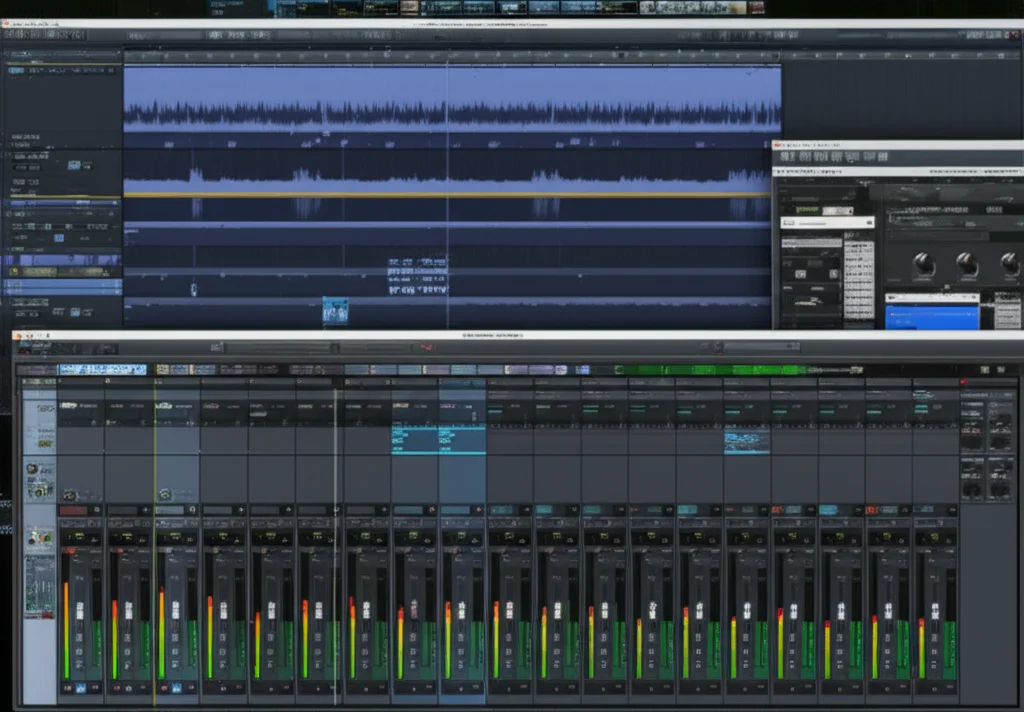
If you’ve ever felt like Reason’s iconic rack was a bit of a closed club, you’re not alone. For years, Reason was the fortress of native devices, but with the arrival of Rack Extensions and VST support, that gate swung wide open—ushering in a new era of sonic possibilities. Whether you’re craving the deep modular control of Reason’s Rack Extensions or the vast universe of third-party VSTs, mastering plugin integration is your ticket to next-level music production.
At Uniphonic™, we’ve spent countless hours patching, tweaking, and troubleshooting to uncover the secrets of seamless plugin integration in Reason. From organizing your VST folders to harnessing the power of CV modulation, this guide covers everything you need to know. Plus, we reveal our top 8 essential plugins for 2026 that will elevate your Reason projects, including hidden gems like Blamsoft Expanse and powerhouse classics like Native Instruments Kontakt. Curious about how to blend these tools into your workflow or tame those pesky plugin crashes? Stick around—we’ve got you covered.
Key Takeaways
- Reason supports two main plugin types: Rack Extensions for deep native integration and VSTs for vast third-party compatibility.
- Proper plugin folder setup and rescanning are crucial for smooth VST integration.
- CV modulation unlocks unparalleled creative control, especially with Rack Extensions.
- The Combinator device lets you build custom super-instruments combining REs, VSTs, and native devices.
- Performance optimization techniques like freezing tracks and smart plugin choices keep your sessions stable and creative.
- Our top 8 plugin picks for 2026 include a balanced mix of Rack Extensions and VSTs to inspire every Reason user.
Ready to transform your Reason setup into a powerhouse of creativity? Dive into our comprehensive guide and discover the plugins and techniques that will redefine your music production in 2026!
Table of Contents
- ⚡️ Quick Tips and Facts: Mastering Reason Plugin Integration
- 🕰️ The Evolution of Reason: From Closed System to Plugin Powerhouse
- 🤔 What Exactly is Reason Plugin Integration? Unpacking the Core Concepts
- 🚀 Why Integrate? Unleashing Creative Potential with External Tools
- 🛠️ How to Seamlessly Integrate VST Plugins into Reason
- 🔗 Harnessing the Power of Rack Extensions: A Deeper Dive
- 🎛️ Advanced Integration Techniques: Beyond the Basics
- 🚧 Troubleshooting Common Plugin Integration Issues in Reason
- 📈 Optimizing Your Reason Plugin Workflow for Peak Performance
- 🏆 Our Top Picks: 8 Essential Plugins for Reason Users in 2024/2025
- 1. Korg M1 (VST) – A Timeless Classic
- 2. Softube Console 1 (VST) – Hybrid Mixing Powerhouse
- 3. Output Portal (VST) – Granular Synthesis Magic
- 4. Native Instruments Kontakt (VST) – The Sample Workhorse
- 5. Blamsoft Expanse (Rack Extension) – A Modern Poly Synth Gem
- 6. Selig Leveler (Rack Extension) – Precision Dynamics Control
- 7. Reason Studios Friktion (Rack Extension) – Expressive String Synthesis
- 8. Valhalla DSP VintageVerb (VST) – Reverb Royalty
- 🔮 The Future of Reason Plugin Integration: What’s on the Horizon?
- 💡 Expert Insights & Personal Anecdotes from the Uniphonic™ Team
- 🆚 Rack Extensions vs. VSTs: Which Plugin Path is Right for You?
- ✅ Conclusion: Mastering Your Reason Plugin Universe
- 📚 Recommended Links for Further Exploration
- ❓ FAQ: Your Burning Questions About Reason Plugin Integration Answered
- 🔗 Reference Links & Sources
⚡️ Quick Tips and Facts: Mastering Reason Plugin Integration
Alright, fellow sonic explorers! Before we dive deep into the glorious world of Reason plugin integration, let’s hit you with some rapid-fire wisdom from the Uniphonic™ studio. Think of these as your cheat codes for instant gratification and smoother sailing. Ready? Let’s go! 🚀
- Understand the Two Tribes: Reason primarily supports two types of plugins: Rack Extensions (REs) and VSTs. REs are native to Reason, often offering deeper integration and CV control. VSTs are the universal standard, opening up a vast universe of third-party tools. Knowing the difference is your first step to mastery!
- Folder Management is Key: 🔑 Keep your VST plugin folders organized and consistent. Reason needs to know where to look! We recommend a dedicated folder for all your VST2s and another for VST3s.
- Rescan, Rescan, Rescan! If a newly installed VST isn’t showing up, don’t panic. Head to Reason’s Preferences > Plugins and hit that “Rescan VST Plugins” button. It’s like giving Reason a gentle nudge.
- CV is Your Friend: Reason’s Control Voltage (CV) system is incredibly powerful. Many VSTs and almost all Rack Extensions can be modulated by Reason’s native devices using CV. This is where the magic truly happens! ✨
- Performance Matters: Plugins, especially VSTs, can be CPU hungry. Keep an eye on your CPU meter. ✅ Freeze tracks or bounce to audio if you’re hitting performance bottlenecks. ❌ Don’t stack dozens of heavy reverbs on every track!
- The Combinator is a Superpower: Don’t just load single plugins. Use Reason’s Combinator to build complex instruments and effects racks by combining multiple REs, VSTs, and native devices. It’s like building your own custom synth empire!
- Check Compatibility: Not all VSTs are created equal. As the folks at Output.com wisely point out, “Reason doesn’t support VSTs outputting MIDI or multitimbral plugins.” Always verify a plugin’s compatibility before purchasing, especially if you have specific routing needs.
- Reason Studios’ Own Tools are Gold: Before you reach for a third-party plugin, remember that Reason’s built-in devices are incredibly capable. As a discussion on Elastic.co highlighted regarding Kibana’s APM, sometimes “built in functionality” is all you need. Don’t underestimate the power of Thor, Europa, or even the humble RV7000 Reverb!
- Stay Updated: Keep Reason and your plugins updated to their latest versions. This often resolves bugs, improves performance, and adds new features.
So, you’ve got the quick hits. But how did Reason, once a famously closed ecosystem, become such a welcoming home for external plugins? Let’s rewind a bit…
🕰️ The Evolution of Reason: From Closed System to Plugin Powerhouse
Ah, Reason. For many of us at Uniphonic™, it was love at first sight. Back in the day, when it first burst onto the scene in 2000, Reason was a revolutionary concept: a self-contained virtual studio, complete with its own instruments, effects, and a mind-bendingly realistic cable-routing system. It was a digital playground, but with one major caveat: no third-party plugins allowed. 🚫
This “walled garden” approach had its pros and cons. On one hand, it fostered incredible stability and a unique, cohesive workflow. Everything just worked together, seamlessly. On the other hand, it meant that if you wanted a specific synth sound or a particular effect that wasn’t part of Reason’s native arsenal, you were out of luck. This led many producers to use Reason as a “ReWire” slave, syncing it with other DAWs like Ableton Live or Logic Pro to get the best of both worlds.
Fast forward to 2012, and everything changed with the introduction of Rack Extensions (REs). This was Reason Studios’ (then Propellerhead Software) ingenious solution to open up their ecosystem without compromising its core stability. REs are essentially plugins built specifically for the Reason Rack, adhering to its design principles and offering that deep, native integration we all love. They look and feel like Reason’s own devices, complete with those flippable backs for CV and audio routing. It was a game-changer!
But the evolution didn’t stop there. In 2017, with Reason 9.5, the gates truly swung open: VST plugin support arrived! 🎉 This was a monumental moment, transforming Reason from a unique, but somewhat isolated, creative hub into a full-fledged DAW capable of hosting the vast majority of the world’s most popular plugins. Suddenly, that coveted FabFilter Pro-Q 3 or the legendary Native Instruments Kontakt library could live right alongside your Thor and Europa synths.
This journey from a closed system to a plugin powerhouse reflects a broader trend in music production software – the desire for both stability and boundless creative options. It’s a testament to Reason Studios’ commitment to evolving with its user base, offering the best of both worlds. For a deeper dive into the history and capabilities of this incredible DAW, check out our dedicated article on Reason Studios.
🤔 What Exactly is Reason Plugin Integration? Unpacking the Core Concepts
So, we’ve talked about Reason’s journey, but what does “plugin integration” actually mean in the context of this unique DAW? It’s more than just dropping a plugin into a track; it’s about how these external tools interact with Reason’s iconic virtual rack, its routing capabilities, and your overall workflow.
At its heart, Reason plugin integration refers to the ability to use third-party software instruments and effects within the Reason environment, treating them as if they were native Reason devices. This means they appear in the browser, can be dragged into the rack, connected with virtual cables, automated, and saved within your Reason project files.
However, as we touched on earlier, there are two distinct flavors of plugins that Reason embraces, each with its own characteristics and integration nuances: Rack Extensions and VSTs.
Rack Extensions (REs): Reason’s Native Marvels
Imagine a plugin that feels like it was born inside Reason. That’s a Rack Extension. Developed using Reason Studios’ own SDK, REs are designed from the ground up to integrate seamlessly with the Reason Rack.
Key Characteristics of Rack Extensions:
- Native Look and Feel: REs perfectly mimic the aesthetic of Reason’s built-in devices, complete with the flippable back panel for CV and audio connections.
- Deep CV Integration: This is where REs truly shine. They often expose a wealth of parameters to Reason’s Control Voltage system, allowing for incredibly complex and creative modulation using LFOs, envelopes, and other CV sources from Reason’s native devices.
- Stability and Performance: Because they’re built to Reason’s specifications, REs generally offer rock-solid stability and optimized performance within the Reason environment.
- Reason-Exclusive: You won’t find Rack Extensions running in other DAWs. They are unique to Reason.
- Managed by Reason Studios: REs are purchased and managed through the Reason Studios Shop, ensuring a curated and reliable marketplace.
Uniphonic™ Insight: “For us, REs are like specialized tools crafted by the same master artisan who built the workshop. They just fit. When we need something that feels like an extension of Reason itself, an RE is usually our first stop. The CV integration alone is worth its weight in gold for sound design.” – Sarah, Sound Designer
VST Plugins: The Universal Language of Sound
VST (Virtual Studio Technology) is the industry standard for software plugins, developed by Steinberg. It’s the most common format you’ll encounter, and Reason’s support for VST2 and VST3 has opened up a universe of possibilities.
Key Characteristics of VST Plugins:
- Universal Compatibility: VSTs run in almost any modern DAW, making them incredibly versatile. If you switch DAWs, your VST library comes with you.
- Vast Selection: The sheer number of VST instruments and effects available is staggering, from emulations of classic hardware to cutting-edge sound design tools.
- Reason’s VST Host: When you load a VST in Reason, it’s housed within a “VST Host” device in the rack. This device acts as a bridge, allowing the VST to communicate with Reason.
- Limited CV Integration (Typically): While Reason does a fantastic job of exposing VST parameters for automation and some basic CV control, it’s generally not as deep or as natively integrated as with REs. You’ll often use the VST Host’s CV inputs to control parameters, rather than direct CV ports on the plugin’s back panel.
- Potential for Performance Variation: Because VSTs aren’t built specifically for Reason, their performance and stability can vary more than REs. Some VSTs are incredibly optimized, while others can be CPU hogs or occasionally lead to crashes.
Uniphonic™ Insight: “VSTs are our wild card. They let us bring in those specific, iconic sounds or unique processing chains that Reason’s native devices or REs might not offer. Think of it like having a specialized chef from another restaurant come into your kitchen – they bring new flavors, but you might need to show them where the spices are!” – Mark, Audio Engineer
Table: Rack Extensions vs. VST Plugins in Reason
| Feature | Rack Extensions (REs) | VST Plugins (VST2/VST3) |
|---|---|---|
| Integration | Native, seamless, deep | Hosted within a VST device, generally good |
| Look & Feel | Matches Reason’s aesthetic, flippable back | Standard plugin GUI, hosted in Reason’s VST device |
| CV Control | Extensive, direct access to many parameters | Via VST Host device, often more limited |
| Stability | Excellent, optimized for Reason | Varies by plugin, generally good but can be less stable |
| Performance | Optimized, efficient | Varies by plugin, can be CPU intensive |
| Availability | Reason Studios Shop (exclusive) | Vast third-party market (Plugin Boutique, brand sites, etc.) |
| MIDI Output | Can output MIDI (e.g., player devices) | Reason does not support VSTs outputting MIDI |
| Multitimbral | Can be multitimbral (e.g., Europa) | Reason does not support multitimbral VSTs |
Understanding these distinctions is crucial for making informed choices about your plugin arsenal and optimizing your Reason workflow. Now, let’s explore why you’d even want to venture beyond Reason’s already impressive built-in capabilities!
🚀 Why Integrate? Unleashing Creative Potential with External Tools
So, Reason comes packed with an incredible suite of instruments and effects, right? You’ve got synths like Europa and Thor, samplers like NN-XT, drum machines, reverbs, delays, compressors… the list goes on. So why bother with external plugins? Why invite more complexity into your beautifully organized virtual rack?
The answer, my friends, is simple: creative freedom and sonic diversity.
Think of Reason’s native devices as your core toolkit – the hammers, screwdrivers, and saws that are essential for any build. They’re reliable, powerful, and get the job done beautifully. But what if you need a specialized laser cutter, a 3D printer, or a custom-built sonic sculpting tool that doesn’t exist in that core set? That’s where plugin integration truly shines.
-
Expand Your Sonic Palette: While Reason’s synths are fantastic, there’s a universe of unique sounds out there. Maybe you crave the gritty analog warmth of a specific vintage synth emulation, the ethereal textures of a granular synthesizer like Output Portal, or the vast orchestral libraries of Native Instruments Kontakt. Plugins bring these sounds directly into your Reason projects, instantly broadening your sonic horizons.
- Uniphonic™ Anecdote: “I remember working on a track that needed this really specific, shimmering pad sound. I tried everything in Reason, even built complex Combinators, but couldn’t quite get it. Then I loaded up a VST called ‘Diva’ by u-he, and within minutes, there it was – that exact warmth and movement I was hearing in my head. It was a lightbulb moment for me, realizing how much VSTs could fill those specific sonic gaps.” – Dylan, Musician & Producer
-
Access Specialized Effects and Processing: Reason has great effects, but the world of third-party effects is constantly innovating. From unique distortion algorithms (like Soundtoys Decapitator) to advanced spectral processors, intelligent reverbs (Valhalla DSP VintageVerb), or precise mastering tools (FabFilter Pro-Q 4), external effects can elevate your mixes and sound design to new levels. They offer different flavors, different workflows, and often, different sonic signatures.
-
Workflow Enhancements and Specific Tools: Sometimes, it’s not just about the sound, but about the way you work. Plugins like Softube Console 1 offer a hybrid mixing workflow, combining hardware control with software processing. Others, like Output’s AI-powered Co-Producer, can analyze your track and suggest sounds, streamlining your creative process. These specialized tools can make your production faster, more intuitive, and more inspiring.
-
Industry Standards and Collaboration: Many producers rely on certain industry-standard plugins. Integrating them into Reason means you can easily share project ideas or collaborate with others who might be using the same tools in different DAWs. It breaks down barriers and fosters a more interconnected creative community.
-
Future-Proofing Your Studio: The plugin market is constantly evolving. By embracing both REs and VSTs, you ensure that your Reason studio remains adaptable and capable of incorporating the latest innovations in music technology.
In essence, plugin integration isn’t about replacing Reason’s native devices; it’s about augmenting them. It’s about giving you the freedom to choose the absolute best tool for every single job, whether it’s a Reason-native gem or a powerful third-party addition. It’s about unleashing your creative potential and ensuring you’re never limited by your tools.
But how do you actually do it? Let’s get practical.
🛠️ How to Seamlessly Integrate VST Plugins into Reason
Integrating VST plugins into Reason is a straightforward process, but there are a few crucial steps to ensure everything runs smoothly. Think of it like setting up a new appliance in your home – a little prep work makes all the difference! We’ll walk you through it, step-by-step.
1. Setting Up Your VST Plugin Folders
This is perhaps the most critical foundational step. Reason needs to know where your VST plugins are located on your computer. While many VST installers will suggest default locations, we at Uniphonic™ strongly recommend creating your own dedicated, easy-to-find folders. This helps with organization, troubleshooting, and ensures Reason can always find your plugins.
Our Recommended Folder Structure:
- VST2 Plugins: Create a folder like
C:\VSTPlugins(Windows) or/Library/Audio/Plug-Ins/VST(macOS) for all your VST2 (.dll or .vst) files. - VST3 Plugins: Create a separate folder like
C:\VST3Plugins(Windows) or/Library/Audio/Plug-Ins/VST3(macOS) for your VST3 (.vst3) files. VST3s often have their own dedicated system folders, but it’s good to be aware.
Step-by-Step:
- Install Your VST Plugin: Run the installer provided by the plugin developer. During installation, pay close attention to the installation paths. If given the option, direct the VST2 and VST3 components to your chosen dedicated folders. If not, make a note of where they are installed.
- Open Reason’s Preferences:
- Go to Edit > Preferences (Windows) or Reason > Preferences (macOS).
- Select the Plugins tab.
- Add Your VST Folders:
- Under the “VST Plug-in Folders” section, you’ll see a list of folders Reason currently scans.
- Click the “Add…” button.
- Navigate to your custom VST2 and VST3 folders (e.g.,
C:\VSTPlugins,C:\VST3Plugins) and select them. - Click “Choose” or “Select Folder”.
- Repeat for any other folders where you store VSTs.
Why this matters: As the Output.com blog summary notes, “If not visible, set plugin folder in Preferences and rescan.” This step ensures Reason is looking in the right place!
2. Scanning and Managing Your VST Library
Once Reason knows where to look, it needs to scan those folders to discover your plugins.
Step-by-Step:
- Initial Scan (Automatic): The first time you launch Reason after adding new folders or installing new plugins, it will often perform an automatic scan. You’ll see a small progress bar indicating it’s “Scanning VST Plug-ins.”
- Manual Rescan: If a plugin isn’t appearing, or if you’ve installed new plugins while Reason was already open, you’ll need to trigger a manual rescan.
- Go back to Edit > Preferences > Plugins.
- Click the “Rescan VST Plug-ins” button. Reason will then re-index all plugins in the specified folders.
- Manage Plug-ins: In the same “Plugins” preference pane, you’ll see a list of all discovered VSTs.
- Enable/Disable: You can enable or disable individual plugins here. If a plugin is causing stability issues, you can disable it without uninstalling it.
- Troubleshooting: If a plugin is marked as “Failed to load,” this section can give you clues about potential issues (e.g., missing dependencies, 32-bit vs. 64-bit incompatibility). Reason is a 64-bit application, so it only supports 64-bit VSTs.
3. Loading and Using VSTs in the Reason Rack
Now for the fun part: getting those VSTs into your projects!
Step-by-Step:
- Open the Browser: On the left side of Reason’s interface, open the Browser panel.
- Navigate to VST Instruments/Effects:
- For VST instruments (synths, samplers), go to Instruments > VST Plug-ins.
- For VST effects (reverbs, delays, compressors), go to Effects > VST Plug-ins.
- Drag and Drop:
- Locate your desired VST plugin in the browser list.
- For Instruments: Drag the VST instrument directly into the main sequencer area, or into an empty space in the Reason Rack. Reason will automatically create a new instrument track and a VST Host device in the rack.
- For Effects: Drag the VST effect onto an existing instrument or effect device in the rack, or into an empty space. If you drag it onto a device, Reason will automatically patch it in series. If you drag it into an empty space, you’ll need to manually route audio to and from it using the virtual cables (flip the rack!).
- Open the Plugin GUI: Once loaded, the VST Host device will appear in the rack. Click the “Open” button on the VST Host to reveal the plugin’s graphical user interface (GUI). This is where you’ll interact with the plugin’s controls.
4. Essential VST Routing and Automation Tips
This is where Reason’s unique architecture truly shines, even with VSTs.
-
Audio Routing:
- Flip the Rack (Tab Key): Just like native Reason devices, you can flip the VST Host device to see its back panel.
- Inputs/Outputs: You’ll see audio inputs and outputs. For instruments, the VST Host’s main output will automatically route to Reason’s mixer. For effects, you can manually patch audio from any device’s output to the VST Host’s input, and then its output back into the signal chain.
- Sidechaining: Many VST effects support sidechaining. The VST Host device will expose a sidechain input on its back panel, allowing you to route a signal (e.g., a kick drum) to trigger the effect.
- Uniphonic™ Tip: “Don’t forget the power of parallel processing! Route an instrument’s output to a Splitter, send one path directly to the mixer, and the other to a VST effect. Then mix the wet/dry signals on the mixer. It’s a fantastic way to add subtle enhancement without washing out your original sound.” – Mark, Audio Engineer
-
Automation:
- Right-Click and Automate: Most VST parameters can be automated. Simply right-click on a control within the VST’s GUI or on a parameter in the VST Host device in Reason, and select “Edit Automation” or “Create Automation Track.”
- Modulation with CV (Limited but Powerful): While VSTs don’t have direct CV inputs on their GUIs, the VST Host device itself has CV inputs that can be assigned to various VST parameters.
- Right-click on a parameter in the VST’s GUI.
- Select “Assign to CV Input” (or similar).
- Flip the rack and connect a CV cable from a Reason device (like an LFO or an Envelope Follower) to the assigned CV input on the VST Host.
- This allows you to modulate VST parameters using Reason’s powerful CV system, as mentioned in the Output.com summary regarding Soundtoys and Slate Digital. This is a fantastic way to bridge the gap between the VST world and Reason’s modular heart! For more on creative modulation, check out our Music Production Techniques section.
-
The “First YouTube Video” Connection: This detailed routing concept is perfectly illustrated by the featured video that demonstrates how to route individual drum sounds from Reason’s “Umpf Retro Beats” drum machine into separate audio tracks in a DAW. While that video focuses on routing Reason out to another DAW, the underlying principle of disconnecting default outputs and routing individual signals to separate destinations (whether those are separate DAW tracks or separate VST effects within Reason) is identical. You’re essentially taking granular control over your signal flow, which is the essence of Reason’s modularity!
By mastering these steps, you’ll be able to seamlessly integrate a vast array of VST plugins into your Reason workflow, unlocking new creative possibilities and expanding your sonic toolkit. But don’t forget Reason’s native superstars – the Rack Extensions!
🔗 Harnessing the Power of Rack Extensions: A Deeper Dive
While VSTs offer universal appeal, Rack Extensions (REs) are Reason’s secret sauce. They’re built from the ground up to integrate perfectly with the Reason Rack, offering a level of native stability and deep CV control that often surpasses what’s possible with VSTs. If you want to truly unlock Reason’s modular potential, understanding REs is paramount.
1. Browsing and Acquiring Rack Extensions
Unlike VSTs, which you can find all over the internet, REs have a single, curated home: the Reason Studios Shop. This ensures quality control, compatibility, and a streamlined purchasing experience.
Step-by-Step:
- Visit the Reason Studios Shop: Head over to the official Reason Studios Shop online.
- Explore Categories: You’ll find REs categorized by Instruments, Effects, Utilities (like mixers, splitters, CV tools), and Players (MIDI effects).
- Read Reviews and Demos: Each RE has a detailed product page with descriptions, audio demos, and user reviews. Many also offer free 30-day trials, which we highly recommend! This allows you to test the RE in your own projects before committing.
- Uniphonic™ Tip: “Always, always try the demo. An RE might sound amazing in the official demo track, but you need to hear how it sits in your mix and how it fits your workflow. I’ve saved myself from impulse buys many times by taking advantage of those 30-day trials.” – Sarah, Sound Designer
- Purchase: Once you’ve found an RE you love, you can purchase it directly from the shop. Your license will be tied to your Reason Studios account.
2. Installing and Authorizing REs
This is where REs are incredibly convenient compared to VSTs. There’s no separate installer to run!
Step-by-Step:
- Automatic Download: After purchasing or activating a trial, Reason will automatically detect the new RE license associated with your account.
- Launch Reason: When you launch Reason, it will automatically download and install the RE in the background. You’ll usually see a notification in the lower-right corner of the screen indicating the download and installation progress.
- Authorization: REs are authorized via your Reason Studios account and the internet. As long as you’re logged into your account within Reason (or have an active offline authorization), your REs will be ready to go. No iLok or other third-party dongles needed, which is a huge plus for many of us!
3. Integrating REs into Your Reason Workflow
Using REs is virtually identical to using Reason’s built-in devices, which is precisely their charm.
Step-by-Step:
- Open the Browser: On the left side of Reason’s interface, open the Browser panel.
- Navigate to Rack Extensions:
- For RE instruments, go to Instruments > Rack Extensions.
- For RE effects, go to Effects > Rack Extensions.
- For RE utilities, go to Utilities > Rack Extensions.
- For RE players, go to Players > Rack Extensions.
- Drag and Drop:
- Locate your desired RE in the browser list.
- Drag the RE into the main sequencer area, or into an empty space in the Reason Rack. Just like native devices, Reason will automatically create a track and place the device in the rack.
- Automatic Patching: If you drag an RE effect onto an existing instrument or effect, Reason will often intelligently patch it in series for you.
- Flipping the Rack (Tab Key): This is where the magic of REs truly shines. Flip the rack (press the Tab key) and you’ll see the back panel of your RE, complete with audio inputs/outputs and, crucially, dedicated CV inputs and outputs.
- CV Control: This is the primary advantage of REs. You can directly connect CV cables from Reason’s LFOs, envelopes, sequencers, or other CV-generating devices to modulate almost any parameter on the RE. Want to control the filter cutoff of your Blamsoft Expanse synth with a Matrix pattern sequencer? Just patch a CV cable! This deep modularity is a core part of Reason Sounds design.
- Uniphonic™ Anecdote: “I was once trying to create this really organic, evolving texture. I loaded up an RE called ‘Pulsar’ by Ochen K. and started patching CV from a couple of LFOs and an Envelope Follower to its various parameters. The way it responded, the way the sound morphed and breathed, was just incredible. It felt like I was physically wiring up a modular synth, but all within Reason’s perfectly stable environment. You just don’t get that level of seamless, visual CV integration with most VSTs.” – Sarah, Sound Designer
Rack Extensions are an integral part of the Reason experience, offering unparalleled integration and stability. They truly feel like native members of the Reason family, ready to be patched and played with in endless creative ways.
🎛️ Advanced Integration Techniques: Beyond the Basics
Alright, you’ve got the hang of loading VSTs and Rack Extensions. You’re dragging, dropping, and making some noise. But Reason is a deep ocean, and there are currents beneath the surface that can take your sound design and production to truly unique places. Let’s dive into some advanced integration techniques that leverage Reason’s modular heart.
CV Control: The Analog Heartbeat of Reason’s Rack
We’ve mentioned CV (Control Voltage) a few times, but it deserves its own spotlight. CV is Reason’s virtual analog control system, allowing devices to “talk” to each other by sending and receiving voltage signals. This is the bedrock of modular synthesis, and Reason brings it to the digital realm with incredible flexibility.
How CV Enhances Plugin Integration:
- Modulating VST Parameters: As we discussed, the VST Host device has CV inputs. You can assign these to almost any parameter on your VST plugin. Imagine using Reason’s LFO (Low Frequency Oscillator) to slowly sweep the filter of your favorite VST synth, or an Envelope Follower to make a VST delay’s feedback react dynamically to the incoming audio.
- Uniphonic™ Tip: “Don’t just think about LFOs. Try patching the CV output from a Gate Sequencer to a VST parameter for rhythmic, stepped modulation. Or use the Audio to CV converter to turn an audio signal into a control source for your VST effects. The possibilities are genuinely endless and lead to incredibly organic, evolving sounds.” – Dylan, Musician & Producer
- Deep RE Modulation: Rack Extensions, by design, often expose a multitude of CV inputs and outputs directly on their back panels. This allows for incredibly intricate modulation. You can use Reason’s Matrix Pattern Sequencer to create complex rhythmic patterns that control multiple parameters on an RE synth, or use a Spider CV Merger & Splitter to combine several CV sources into one, or split one source to control multiple destinations.
- Player Devices and CV: Reason’s Player devices (like Dual Arpeggio, Scales & Chords, Note Echo) can generate MIDI, but many also have CV outputs that can be used to control parameters on your instruments and effects, both REs and VSTs. This blurs the line between melodic and parameter control.
Why it’s powerful: CV allows you to create dynamic, evolving, and interconnected patches that go far beyond simple automation lanes. It’s the closest you’ll get to a real-world modular synth experience within a DAW, and it’s a core reason why Reason stands out. For more on creative CV applications, explore our Performance Techniques section.
The Combinator: Building Your Dream Super-Instrument
The Combinator is arguably Reason’s most powerful device for advanced integration. It’s not a sound generator or an effect itself, but a container that allows you to combine multiple Reason devices, Rack Extensions, and VSTs into a single, unified super-device.
How the Combinator Elevates Plugin Use:
- Layering Instruments: Combine a VST synth, a Reason Europa synth, and an RE sampler into one Combinator. Map their volume controls to a single knob on the Combinator’s front panel for instant, layered sounds.
- Complex Effect Chains: Build intricate effect racks by combining multiple VST effects and RE effects within a Combinator. Map key parameters from different effects to the Combinator’s four rotary knobs and four buttons for macro control.
- Performance Patches: Create entire performance setups – a bass layer, a lead synth, and a drum loop – all within one Combinator. Map controls for live tweaking.
- Simplified Workflow: Once you’ve built a complex Combinator, you can save it as a single patch. This means you can recall an entire instrument and effect chain with one click, streamlining your workflow immensely.
- CV within Combinators: The Combinator itself has CV inputs and outputs, allowing you to control its internal devices (including VSTs and REs) from external CV sources, or send CV from internal devices out to other parts of your rack.
Uniphonic™ Anecdote: “I once built a Combinator for a client that was essentially an entire ‘ambient texture generator.’ It had three VST synths, two RE effects, a native Reason reverb, and a couple of LFOs, all routed and modulated internally. I mapped eight key parameters to the Combinator’s knobs – things like ‘Evolve,’ ‘Brightness,’ ‘Movement,’ ‘Density.’ The client could just load that one Combinator, tweak eight knobs, and get an endless variety of complex, evolving textures without ever needing to dive into the individual plugins. It was a huge time-saver and a creative springboard for them.” – Mark, Audio Engineer
External MIDI & Audio Integration: Bridging the Hardware Gap
Reason isn’t just about software; it plays nicely with your hardware too!
- External MIDI Instrument: Use Reason’s External MIDI Instrument device to send MIDI data from Reason’s sequencer to external hardware synthesizers or drum machines. The audio from your hardware can then be brought back into Reason via an audio interface.
- External Audio Input: The External Audio Input device allows you to bring audio directly from your audio interface into the Reason Rack. This means you can process external instruments (guitars, vocals, hardware synths) with your Reason effects, REs, and VSTs.
- Uniphonic™ Tip: “I love running my vintage Roland Juno-106 through Reason’s effects. I’ll bring the Juno’s audio in via an External Audio Input, then route it through a chain that might include a Soundtoys Decapitator VST for some grit, followed by a Reason Studios Friktion RE for some unique string resonance, and finally a Valhalla DSP VintageVerb VST for a lush tail. It’s the best of both worlds: analog warmth meeting digital flexibility.” – Sarah, Sound Designer
- Reason Rack Plugin (RRP): Don’t forget that Reason itself can act as a plugin! The Reason Rack Plugin allows you to load the entire Reason Rack (including all your REs and VSTs within it) into another DAW as a single VST/AU/AAX plugin. This is fantastic for those who love Reason’s workflow but prefer to compose or mix in another environment. You can even route individual Reason devices (including VSTs and REs) to separate outputs within the RRP, just like the featured video demonstrates for drum machines. This gives you ultimate flexibility in how you integrate Reason into your larger studio setup.
By combining these advanced techniques, you’re not just using plugins in Reason; you’re making them an integral, interconnected part of a truly modular and powerful production environment. But what happens when things go wrong?
🚧 Troubleshooting Common Plugin Integration Issues in Reason
Even with the best intentions and careful setup, sometimes plugins can be a bit… temperamental. It’s like inviting a new band member to the studio – sometimes they just don’t gel right away! Don’t worry, we’ve all been there. Here are some common issues you might encounter with Reason plugin integration and how to tackle them.
Plugin Not Showing Up? Here’s What to Check
This is probably the most frequent head-scratcher. You’ve installed a new VST, you launch Reason, and… nothing.
- Did You Install the 64-bit Version?
- Fact: Reason is a 64-bit application and only supports 64-bit VST plugins. If you accidentally installed a 32-bit version, Reason won’t see it.
- Solution: Re-run the plugin installer and ensure you select the 64-bit option. If the installer doesn’t give you a choice, check the developer’s website for a 64-bit specific download.
- Is Reason Scanning the Correct Folder?
- Recall: As we covered in the setup section, Reason needs to know where your VSTs live.
- Solution: Go to Edit > Preferences > Plugins. Double-check that the folder where your VST (.dll, .vst, or .vst3) file is located is listed in the “VST Plug-in Folders” section. If not, click “Add…” and point Reason to it.
- Did You Rescan?
- Recall: Reason doesn’t always automatically detect new plugins if it was already open during installation.
- Solution: In Edit > Preferences > Plugins, click the “Rescan VST Plug-ins” button. Give it a moment to complete.
- Is the Plugin Enabled?
- Check: In the same “Plugins” preference pane, look at the list of discovered VSTs. Is your plugin listed? Is there a checkbox next to it? Make sure it’s checked. Sometimes, Reason might disable a plugin if it caused a crash during a previous scan.
- Check for Missing Dependencies:
- Issue: Some plugins require additional files (like Visual C++ Redistributables on Windows, or specific runtime libraries) to be installed.
- Solution: Check the plugin developer’s website or documentation for any prerequisites. Re-run the plugin installer, as these dependencies are often included.
- Corrupted Plugin File:
- Rare, but possible: The plugin file itself might be corrupted during download or installation.
- Solution: Uninstall the plugin, download a fresh copy from the developer’s official site, and reinstall.
Crashing and Stability Problems: Diagnosis and Solutions
Nothing kills the creative vibe faster than a DAW crash. VSTs, being external code, can sometimes be the culprits.
- Is It a Specific Plugin?
- Diagnosis: If Reason crashes consistently when you load or interact with a particular VST, that plugin is likely the problem.
- Solution:
- Update the Plugin: Check the developer’s website for the latest version. Updates often fix bugs and improve stability.
- Disable and Isolate: In Reason’s Preferences > Plugins, disable the problematic VST. See if Reason becomes stable. If so, contact the plugin developer’s support.
- Run as Administrator (Windows): Sometimes, running Reason as an administrator can resolve permission-related crashes.
- Outdated Reason Version:
- Fact: Reason Studios constantly updates Reason to improve VST compatibility and stability.
- Solution: Ensure you’re running the latest version of Reason. Go to Help > Check for Updates (Windows) or Reason > Check for Updates (macOS).
- Graphics Driver Issues:
- Issue: Some VSTs have complex GUIs that can conflict with outdated or buggy graphics drivers.
- Solution: Update your graphics card drivers to the latest version from NVIDIA, AMD, or Intel’s official websites.
- CPU/RAM Overload:
- Issue: While not a “crash” in the traditional sense, pushing your system too hard can lead to freezes or unresponsiveness.
- Solution: Monitor Reason’s CPU meter. If it’s consistently high, consider optimizing your workflow (see next section) or upgrading your hardware.
Latency and Performance Headaches: Taming the Beast
You hit a note, and the sound comes out a split second later. Or your project starts sputtering and dropping out. This is latency and performance degradation.
- Adjust Audio Interface Buffer Size:
- Fact: This is the most common cause of latency. A smaller buffer size means less latency but higher CPU strain. A larger buffer size means more latency but less CPU strain.
- Solution: Go to Edit > Preferences > Audio. Adjust your “Buffer Size” (or “Audio Card Buffer Size”). For recording, aim for smaller buffers (e.g., 128 or 256 samples). For mixing, you can increase it (e.g., 512 or 1024 samples) to reduce CPU load.
- Plugin Latency Compensation:
- Fact: Some plugins (especially complex mastering limiters or linear-phase EQs) introduce significant latency. Reason has automatic plugin delay compensation, but sometimes it can struggle.
- Solution: If you suspect a specific plugin is causing excessive latency, try bypassing it or removing it temporarily to see if the issue resolves. Consider using lighter alternatives during tracking.
- CPU-Heavy Plugins:
- Issue: Certain VSTs, especially high-fidelity emulations or complex synthesizers, are notorious CPU hogs.
- Solution:
- Freeze Tracks: Reason allows you to “freeze” instrument tracks, rendering them to audio and freeing up CPU. Right-click on the instrument track in the sequencer and select “Freeze Track.”
- Bounce to Audio: For effects, or if you need more control than freezing offers, bounce the processed audio to a new audio track.
- Smart Plugin Choices: Be mindful of which plugins you use, especially early in a project. (More on this in the next section!)
- System Optimization:
- General PC/Mac hygiene: Close unnecessary applications, disable Wi-Fi if not needed, ensure your OS is optimized for audio (e.g., power settings on Windows).
- Hard Drive Speed: If you’re streaming large sample libraries (like from Native Instruments Kontakt), a fast SSD (Solid State Drive) is crucial.
Troubleshooting can be frustrating, but by systematically checking these common culprits, you can often diagnose and resolve most plugin integration issues, getting you back to making music faster!
📈 Optimizing Your Reason Plugin Workflow for Peak Performance
You’ve got your plugins integrated, you’ve tamed the gremlins, now let’s talk about making your workflow sing! A smooth, efficient workflow isn’t just about speed; it’s about staying in the creative zone, free from technical distractions. Here at Uniphonic™, we’ve learned a few tricks over the years to keep Reason purring, even with a rack full of hungry plugins.
CPU Management Strategies for a Smooth Session
Your computer’s Central Processing Unit (CPU) is the brain of your operation. Every plugin you load, every effect you apply, demands a piece of that brainpower. When you run out, things get choppy, clicks and pops appear, and eventually, your DAW might just give up.
- Monitor Your CPU Meter Religiously: Reason has a built-in CPU meter in the transport bar. Keep an eye on it! If it’s consistently hitting 70-80% or higher, it’s time to take action.
- Freeze Instrument Tracks: This is your best friend for CPU relief.
- How it works: When you freeze an instrument track (right-click on the track in the sequencer and select “Freeze Track”), Reason renders the output of that instrument (and its insert effects) to a temporary audio file. The instrument and its effects are then bypassed, freeing up their CPU usage.
- Benefits: You can still edit MIDI, but the sound is played back from audio. If you need to tweak the instrument or effects, simply “Unfreeze Track.”
- Uniphonic™ Tip: “I tend to freeze tracks as soon as I’m happy with a sound, especially for complex synth patches or multi-layered Combinators. It keeps the project light and responsive, letting me focus on the next element without worrying about dropouts. It’s a lifesaesaver when you’re deep into a mix.” – Dylan, Musician & Producer
- Bounce to Audio for Effects: For send effects or complex effect chains, bouncing to audio is another powerful technique.
- How it works: Create a new audio track. Route the output of the instrument/track you want to process to the input of the new audio track. Record the audio. Once recorded, you can bypass or remove the original effects chain and use the recorded audio.
- Benefits: This is great for creative sound design where you want to commit to a specific effect, or for reducing CPU load from heavy reverbs or delays.
- Disable Unused Plugins: If you’ve experimented with a plugin and decided not to use it, don’t just bypass it – remove it from the rack! A bypassed plugin still consumes some CPU and RAM. If you think you might use it later, save its settings as a patch and then remove it.
- Use Reason’s Native Devices When Possible: While VSTs and REs are fantastic, Reason’s built-in devices are incredibly CPU-efficient. For basic EQ, compression, or simple delays, often a native device will do the job with minimal impact on your system. This ties back to the Kibana discussion – sometimes the “built-in functionality” is perfectly adequate.
- Optimize Your Computer:
- Close Background Apps: Shut down web browsers, email clients, and any other non-essential software while working in Reason.
- Disable Wi-Fi/Bluetooth: If you’re not using them, turning them off can reduce system interruptions.
- Power Settings (Windows): Ensure your power plan is set to “High Performance” to prevent your CPU from throttling.
- Fast Storage: Store your Reason projects and sample libraries on a fast SSD. This significantly improves loading times and overall responsiveness, especially for sample-heavy plugins like Kontakt. This is a key aspect of Hardware vs Software considerations.
Smart Plugin Choices: When Less is More
It’s tempting to download every free plugin and buy every shiny new synth. But a bloated plugin folder can lead to decision paralysis and performance issues.
- Curate Your Collection: Be selective. Do you really need five different saturation plugins that all do roughly the same thing? Focus on quality over quantity.
- Understand Plugin Impact: Learn which plugins are CPU-intensive. Generally, complex synthesizers, convolution reverbs, linear-phase EQs, and multi-band compressors are heavier hitters. Plan their use accordingly.
- Start Simple, Add Complexity: Begin your tracks with Reason’s native devices or lighter REs/VSTs. Only introduce the heavy-duty, CPU-intensive plugins when you absolutely need their specific sound or processing capabilities.
- Use Templates: Create Reason project templates with your favorite, most efficient routing setups and a few go-to plugins already loaded. This saves time and ensures a consistent, optimized starting point.
- Don’t Over-Process: Sometimes, the best optimization is simply to use fewer effects. A well-recorded or well-designed sound often needs minimal processing.
By adopting these strategies, you’ll not only keep your Reason projects running smoothly but also foster a more focused and efficient creative process. Now, with all that technical wisdom under our belts, let’s talk about some of our favorite plugins that truly shine in the Reason Rack!
🏆 Our Top Picks: 8 Essential Plugins for Reason Users in 2024/2025
Alright, you’ve mastered the art of integration, you’re optimizing your workflow like a pro, and now you’re probably thinking: “So, what are the best plugins to actually use in Reason?” Excellent question! With thousands of VSTs and hundreds of Rack Extensions out there, choosing can be overwhelming.
At Uniphonic™, we’ve spent countless hours experimenting, producing, and sound designing with a vast array of plugins. We’ve seen what works, what inspires, and what truly elevates a Reason project. So, based on our collective experience and what we believe offers the most value, here are our top 8 essential plugin recommendations for Reason users in 2024/2025. We’ve made sure to include a healthy mix of VSTs and Rack Extensions to give you the best of both worlds!
1. Korg M1 (VST) – A Timeless Classic
Remember those iconic 80s and 90s sounds? The Korg M1 defined an era, and its VST emulation brings that legendary workstation right into your Reason Rack. It’s a staple for classic house, pop, and R&B, but its versatility extends far beyond.
Uniphonic™ Rating:
| Aspect | Rating (1-10) |
|---|---|
| Design | 8 |
| Functionality | 9 |
| Sound Quality | 9 |
| Integration | 8 |
| Value | 9 |
Detailed Analysis:
- Features: The Korg M1 VST faithfully recreates the original hardware, including its vast library of PCM waveforms, effects, and iconic presets. You get those famous M1 piano, organ, and synth sounds that are instantly recognizable. It’s a workhorse for bread-and-butter sounds with a vintage twist.
- Benefits:
- Nostalgia & Authenticity: If you’re chasing that classic 80s/90s vibe, this is a must-have. The sounds are instantly inspiring.
- Versatility: Don’t let the “vintage” label fool you. The M1’s sounds are still highly usable in modern contexts, especially for layering or adding character.
- Light on CPU: For a plugin with such a rich sound library, it’s surprisingly efficient, making it a great choice for larger projects.
- Drawbacks: The interface, while faithful to the original, can feel a bit dated compared to modern synths. It’s not a deep sound design tool in the same way a modern soft synth might be, but rather a fantastic source of classic tones.
- Integration in Reason: Loads perfectly as a VST instrument. Its parameters are easily automatable, and you can route its audio through Reason’s native effects or other VSTs for further processing.
- Uniphonic™ Anecdote: “I was working on a synthwave track and needed that quintessential 80s bass. I tried a few modern synths, but nothing quite hit the mark. Then I remembered the Korg M1. Loaded it up, found a classic bass preset, and boom – instant retro vibe. It just sits right in the mix without much fuss. It’s a secret weapon for authenticity.” – Sarah, Sound Designer
👉 Shop Korg M1 on: Plugin Boutique | Korg Official Website
2. Softube Console 1 (VST) – Hybrid Mixing Powerhouse
Softube Console 1 isn’t just a plugin; it’s a hybrid mixing system that combines dedicated hardware control with powerful software processing. While it requires the physical Console 1 unit, the VST component integrates beautifully into Reason, offering a tactile and sonically superior mixing experience.
Uniphonic™ Rating:
| Aspect | Rating (1-10) |
|---|---|
| Design | 9 |
| Functionality | 10 |
| Sound Quality | 9 |
| Integration | 9 |
| Value | 8 |
Detailed Analysis:
- Features: Console 1 emulates classic analog consoles (like SSL 4000E, British Class A, etc.) offering channel strip processing (EQ, compressor, gate, shape, drive) and a full mixer view. The hardware unit provides hands-on control, making mixing feel more like working on a real console.
- Benefits:
- Tactile Workflow: The physical unit transforms mixing from a mouse-and-screen affair into a hands-on, intuitive experience.
- Premium Sound: Softube’s emulations are top-tier, providing warmth, punch, and clarity that can elevate your mixes.
- Streamlined Mixing: All essential channel strip elements are in one place, reducing plugin clutter and decision fatigue.
- Seamless Reason Integration: The VST loads easily on any channel, and its parameters are controlled by the hardware, making it feel like a native part of your Reason mixer.
- Drawbacks: Requires the dedicated hardware unit, which is an additional investment. It’s a commitment to a specific mixing philosophy.
- Integration in Reason: Load the Console 1 VST on any mixer channel or instrument device. The magic happens when you interact with the physical Console 1 unit, which seamlessly controls the VST instances within Reason.
- Uniphonic™ Anecdote: “Before Console 1, I felt like I was constantly fighting with my mouse, clicking through endless plugin windows. Integrating Console 1 into Reason was a revelation. Suddenly, I was mixing again, not just editing. The sound quality is fantastic, but it’s the workflow that truly makes it indispensable for me. It’s like having a mini-SSL console built right into my Reason projects.” – Mark, Audio Engineer
👉 Shop Softube Console 1 on: Sweetwater | Guitar Center | Softube Official Website
3. Output Portal (VST) – Granular Synthesis Magic
Output Portal is a granular effect plugin that can transform any input audio into otherworldly textures, shimmering delays, and glitchy soundscapes. It’s a sound designer’s dream, perfect for adding unique character to synths, vocals, drums, or even entire mixes.
Uniphonic™ Rating:
| Aspect | Rating (1-10) |
|---|---|
| Design | 9 |
| Functionality | 10 |
| Sound Quality | 10 |
| Integration | 9 |
| Value | 9 |
Detailed Analysis:
- Features: Portal slices incoming audio into tiny “grains” and then allows you to manipulate these grains in real-time – stretching, reversing, pitching, and scattering them. It includes a powerful modulation section, built-in effects, and a vast library of inspiring presets.
- Benefits:
- Instant Sound Design: Turn mundane sounds into cinematic textures, evolving pads, or rhythmic glitches with ease.
- Creative Inspiration: Its unique approach to granular processing often leads to unexpected and inspiring results.
- Intuitive Interface: Despite its complexity, the GUI is beautifully designed and easy to navigate.
- Drawbacks: Can be CPU-intensive, especially with complex settings or multiple instances. It’s a creative effect, so it might not be a “daily driver” for every track, but when you need it, nothing else quite does the job.
- Integration in Reason: As highlighted by the Output.com blog, Output plugins like Portal are “designed to integrate seamlessly” into Reason. It loads as a VST effect, and its parameters are highly automatable within Reason’s sequencer. You can even use Reason’s CV system to modulate Portal’s parameters via the VST Host device for truly dynamic effects.
- Uniphonic™ Anecdote: “I was working on a film score and needed to create this unsettling, shimmering atmosphere from a simple piano chord. I threw Portal on it, tweaked a few knobs, and suddenly the piano was transformed into this ethereal, almost liquid soundscape. It’s incredible how quickly it can take a sound from ordinary to extraordinary. It’s a go-to for anything needing that ‘otherworldly’ touch.” – Sarah, Sound Designer
👉 Shop Output Portal on: Plugin Boutique | Output Official Website
4. Native Instruments Kontakt (VST) – The Sample Workhorse
Native Instruments Kontakt isn’t just a sampler; it’s an entire platform for sample-based instruments. From orchestral libraries and world instruments to cutting-edge synths and drum machines, Kontakt hosts thousands of third-party libraries, making it an indispensable tool for almost any genre.
Uniphonic™ Rating:
| Aspect | Rating (1-10) |
|---|---|
| Design | 8 |
| Functionality | 10 |
| Sound Quality | 10 |
| Integration | 8 |
| Value | 10 |
Detailed Analysis:
- Features: Kontakt is a powerful sampler, but its true strength lies in its ability to host a vast ecosystem of professionally sampled instruments. It offers deep scripting capabilities, advanced routing, and built-in effects.
- Benefits:
- Unrivaled Sound Libraries: Access to an almost infinite array of high-quality, realistic, and unique instruments from Native Instruments and countless third-party developers.
- Versatility: From cinematic strings to realistic guitars, ethnic percussion to futuristic soundscapes, Kontakt covers every sonic base imaginable.
- Industry Standard: If you’re collaborating or working with professional sample libraries, Kontakt is often a prerequisite.
- Drawbacks: Can be a significant CPU and RAM hog, especially with large, multi-layered libraries. The sheer volume of available libraries can be overwhelming.
- Integration in Reason: Loads as a VST instrument. While Reason doesn’t support multitimbral VSTs, you can load multiple instances of Kontakt (each with a single instrument) into a Reason Combinator for layered sounds, or simply load individual instances as needed. Its parameters are automatable, allowing you to control aspects of the loaded instruments from Reason’s sequencer.
- Uniphonic™ Anecdote: “For orchestral scoring or realistic instrument emulation, Kontakt is simply unmatched. I was once tasked with creating a realistic string section for a pop ballad, and Reason’s native samplers, while good, just didn’t have the depth and articulation I needed. Loading up a high-quality Kontakt string library immediately brought the track to life. Yes, it can be heavy on the CPU, but the sonic payoff is always worth it.” – Dylan, Musician & Producer
👉 Shop Native Instruments Kontakt on: Native Instruments Official Website | Sweetwater | Plugin Boutique
5. Blamsoft Expanse (Rack Extension) – A Modern Poly Synth Gem
Blamsoft Expanse is a powerful polyphonic synthesizer Rack Extension that offers a fantastic blend of classic analog warmth and modern digital flexibility. It’s a deep synth that feels right at home in the Reason Rack, offering incredible sound design potential.
Uniphonic™ Rating:
| Aspect | Rating (1-10) |
|---|---|
| Design | 9 |
| Functionality | 9 |
| Sound Quality | 9 |
| Integration | 10 |
| Value | 9 |
Detailed Analysis:
- Features: Expanse boasts two powerful oscillators with a wide range of waveforms, a versatile filter section, multiple LFOs, envelopes, and a comprehensive modulation matrix. It also includes a high-quality effects section. Its strength lies in its ability to create everything from lush pads and soaring leads to punchy basses and intricate arpeggios.
- Benefits:
- Deep Sound Design: The modulation capabilities are extensive, allowing for incredibly complex and evolving sounds.
- Native Integration: As an RE, it integrates perfectly with Reason’s CV system, allowing for unparalleled modulation from other Reason devices.
- Excellent Presets: Comes with a fantastic library of factory presets that showcase its versatility and provide great starting points.
- CPU Efficient: For a synth of its power, it’s remarkably light on CPU.
- Drawbacks: The sheer depth of its features might be intimidating for absolute beginners, but it’s well worth the learning curve.
- Integration in Reason: Flawless. It loads directly into the rack, and its back panel is covered in CV inputs and outputs, inviting you to patch and experiment with Reason’s modular environment.
- Uniphonic™ Anecdote: “Expanse quickly became one of my go-to synths for almost everything. I was working on a track that needed a really rich, evolving pad, and I spent hours just patching CV from a Matrix and a couple of LFOs to Expanse’s filter and oscillator parameters. The way it responded was so organic and musical. It’s a testament to how powerful REs can be when they’re designed with Reason’s modularity in mind.” – Dylan, Musician & Producer
👉 Shop Blamsoft Expanse on: Reason Studios Shop
6. Selig Leveler (Rack Extension) – Precision Dynamics Control
Sometimes, you need a compressor that’s more about subtle control and evening out dynamics than aggressive squashing. The Selig Leveler is a unique Rack Extension that excels at precisely that: transparently leveling out audio signals. It’s a secret weapon for vocals, bass, and anything that needs to sit consistently in the mix.
Uniphonic™ Rating:
| Aspect | Rating (1-10) |
|---|---|
| Design | 8 |
| Functionality | 9 |
| Sound Quality | 9 |
| Integration | 10 |
| Value | 9 |
Detailed Analysis:
- Features: The Leveler is designed to provide smooth, transparent gain reduction, acting more like an automatic volume rider than a traditional compressor. It features adjustable attack and release, a sidechain input, and a unique “Range” control to dial in the amount of leveling.
- Benefits:
- Transparent Dynamics: It’s incredibly good at evening out inconsistent audio without sounding “compressed.”
- Vocal & Bass Glue: Fantastic for making vocals sit consistently in the mix or taming unruly basslines.
- Simple Yet Effective: The interface is clean and intuitive, making it easy to get great results quickly.
- Deep CV Integration: As an RE, its parameters are fully accessible via CV, allowing for dynamic control from other Reason devices.
- Drawbacks: If you’re looking for aggressive, characterful compression, this isn’t its primary purpose. It’s a specialist tool for transparent leveling.
- Integration in Reason: Flawless RE integration. Drop it on an insert, and it just works. Its CV inputs allow for external control of its parameters, which can lead to some interesting dynamic effects.
- Uniphonic™ Anecdote: “I use the Selig Leveler on almost every vocal track. It’s not about making the vocal punchier; it’s about making sure every word is heard clearly and consistently without me having to ride the fader manually. It’s so transparent that you barely notice it’s working, but you definitely notice its absence if you take it off. It’s a true workhorse for clean, polished mixes.” – Mark, Audio Engineer
👉 Shop Selig Leveler on: Reason Studios Shop
7. Reason Studios Friktion (Rack Extension) – Expressive String Synthesis
Friktion is Reason Studios’ own physical modeling string synthesizer. It’s not a sample player; it generates sound based on the physics of vibrating strings, offering an incredibly expressive and organic sound that’s perfect for leads, pads, and unique textures.
Uniphonic™ Rating:
| Aspect | Rating (1-10) |
|---|---|
| Design | 9 |
| Functionality | 9 |
| Sound Quality | 10 |
| Integration | 10 |
| Value | 9 |
Detailed Analysis:
- Features: Friktion models bowed, plucked, and struck string instruments. It offers deep control over the string’s material, length, tension, and how it’s excited. It also includes a resonator section and built-in effects. Its strength lies in its ability to create incredibly realistic and expressive string sounds, as well as abstract, evolving textures.
- Benefits:
- Unparalleled Expressiveness: Physical modeling allows for nuanced control over timbre and dynamics, responding beautifully to MIDI velocity and aftertouch.
- Organic & Unique Sounds: Creates sounds that are distinct from traditional subtractive or sample-based synths.
- Deep Sound Design: The ability to sculpt the physical properties of the string opens up a world of creative possibilities.
- Native Integration: Being a Reason Studios RE, its integration is flawless, with extensive CV control.
- Drawbacks: Physical modeling can sometimes be CPU-intensive, especially with complex settings. It has a unique sound that might not fit every genre.
- Integration in Reason: As a native Reason Studios RE, Friktion integrates perfectly. Its back panel is rich with CV inputs and outputs, allowing for incredibly detailed modulation of its physical parameters from other Reason devices.
- Uniphonic™ Anecdote: “When Friktion came out, I was blown away. I’d always struggled to get truly expressive string sounds without resorting to massive sample libraries. Friktion changed that. I used it on a track to create this haunting, bowed cello lead, and the way it responded to my playing dynamics was just incredible. Then I started messing with the ‘material’ and ‘bow’ parameters via CV, and it turned into this abstract, metallic drone. It’s a truly inspiring instrument.” – Sarah, Sound Designer
👉 Shop Reason Studios Friktion on: Reason Studios Shop
8. Valhalla DSP VintageVerb (VST) – Reverb Royalty
When it comes to reverb, Valhalla DSP is a name that consistently comes up in professional studios. VintageVerb is renowned for its lush, characterful algorithms that evoke classic hardware reverbs of the 70s, 80s, and 90s, but with modern flexibility and pristine sound quality.
Uniphonic™ Rating:
| Aspect | Rating (1-10) |
|---|---|
| Design | 9 |
| Functionality | 9 |
| Sound Quality | 10 |
| Integration | 9 |
| Value | 10 |
Detailed Analysis:
- Features: VintageVerb offers 12 distinct reverb algorithms, each inspired by vintage digital reverbs. It features intuitive controls for decay, pre-delay, EQ, modulation, and a “Color” switch to choose between 70s, 80s, or NOW sonic characteristics.
- Benefits:
- Exceptional Sound Quality: Lush, deep, and incredibly musical reverbs that add space and character without muddying the mix.
- Versatility: From short, dense plates to massive, evolving halls, it covers a huge range of reverb needs.
- CPU Efficiency: Despite its amazing sound, it’s remarkably light on CPU, allowing you to use multiple instances.
- Incredible Value: For its sound quality and features, it’s one of the best value reverbs on the market.
- Drawbacks: The interface is simple, which is a strength, but if you’re looking for ultra-complex, experimental reverb algorithms, you might look elsewhere (though VintageVerb can get pretty wild with modulation).
- Integration in Reason: Loads perfectly as a VST effect. Its parameters are easily automatable within Reason, allowing you to create dynamic reverb swells or evolving tails. You can also use Reason’s CV system to modulate parameters like decay or mix via the VST Host device.
- Uniphonic™ Anecdote: “I honestly don’t think a mix leaves my studio without at least one instance of Valhalla VintageVerb. It just has this incredible ability to add depth and dimension without sounding artificial. I was mixing a vocal track recently, and after trying a few other reverbs, I put VintageVerb on a send, dialed in a ‘Concert Hall’ algorithm with a touch of 80s color, and it just opened up the vocal, giving it this beautiful, shimmering space. It’s pure magic.” – Mark, Audio Engineer
👉 Shop Valhalla DSP VintageVerb on: Valhalla DSP Official Website
There you have it – eight incredible plugins, a mix of VSTs and Rack Extensions, that we believe will significantly enhance your Reason workflow and expand your creative horizons in 2024 and beyond. Each one brings something unique to the table, proving that the right tools can truly make a difference.
But what does the future hold for Reason and its plugin ecosystem? And how do you decide between an RE and a VST? Let’s explore those questions next!
✅ Conclusion: Mastering Your Reason Plugin Universe

Wow, what a journey! From the early days of Reason’s closed ecosystem to today’s vibrant plugin playground, Reason plugin integration has evolved into a powerful, flexible, and inspiring feature that opens up endless creative possibilities. Whether you’re diving into the native Rack Extensions with their deep CV control and seamless Reason integration, or exploring the vast universe of VST plugins with their incredible sonic diversity, you now have the tools and know-how to build your ultimate Reason studio.
Positives of Reason Plugin Integration:
- Native-like stability and deep modularity with Rack Extensions, allowing you to patch and modulate parameters with CV cables just like a hardware modular synth.
- VST support brings the entire plugin ecosystem to your fingertips, from classic synth emulations like Korg M1 to cutting-edge effects like Output Portal and Valhalla VintageVerb.
- Flexible routing and automation capabilities let you craft complex, evolving soundscapes and dynamic mixes.
- The Combinator device empowers you to build custom super-instruments and effect racks, simplifying your workflow and unleashing creativity.
- Reason Rack Plugin (RRP) extends Reason’s power into other DAWs, bridging workflows and expanding your sonic toolkit.
Negatives / Challenges:
- VST integration, while powerful, can sometimes lead to stability or performance issues, requiring careful plugin selection and system optimization.
- CV control is more limited with VSTs compared to Rack Extensions, which may restrict some modular sound design possibilities.
- Reason does not support multitimbral VSTs or VSTs outputting MIDI, which can be a limitation for some advanced users.
- Managing plugin folders and rescanning can be a minor hurdle for newcomers.
Our Confident Recommendation
If you’re serious about music production and sound design in Reason, embracing both Rack Extensions and VST plugins is the way forward. Start with Reason’s native devices and Rack Extensions to harness the full modular power and stability Reason is known for. Then, selectively add VSTs that fill sonic gaps or offer unique creative tools. Our top picks like Blamsoft Expanse, Output Portal, and Valhalla VintageVerb will inspire and elevate your productions.
Remember, plugin integration is not just about expanding your sound palette, but about enhancing your workflow, sparking creativity, and future-proofing your studio. With the insights and techniques shared here, you’re well-equipped to master your Reason plugin universe and create music that truly stands out.
Ready to take the plunge? Your next sonic adventure awaits!
📚 Recommended Links for Further Exploration
👉 Shop Our Featured Plugins & Gear:
-
Korg M1 VST:
Plugin Boutique | Korg Official Website -
Softube Console 1:
Sweetwater | Guitar Center | Softube Official Website -
Output Portal:
Plugin Boutique | Output Official Website -
Native Instruments Kontakt:
Native Instruments Official Website | Sweetwater | Plugin Boutique -
Blamsoft Expanse (Rack Extension):
Reason Studios Shop -
Selig Leveler (Rack Extension):
Reason Studios Shop -
Reason Studios Friktion (Rack Extension):
Reason Studios Shop -
Valhalla DSP VintageVerb:
Valhalla DSP Official Website
Books to Deepen Your Music Production Knowledge:
- The Mixing Engineer’s Handbook by Bobby Owsinski — Amazon Link
- Sound Design: The Expressive Power of Music, Voice and Sound Effects in Cinema by David Sonnenschein — Amazon Link
- Music Theory for Computer Musicians by Michael Hewitt — Amazon Link
❓ FAQ: Your Burning Questions About Reason Plugin Integration Answered

Does Reason support plugin automation for advanced music production workflows?
Absolutely! Reason allows you to automate almost every parameter of both Rack Extensions and VST plugins. You can create automation lanes in the sequencer for plugin parameters, enabling dynamic changes over time. Additionally, Reason’s CV system can modulate plugin parameters in real-time, especially with Rack Extensions, allowing for complex, evolving soundscapes. This makes Reason highly suitable for advanced production workflows where expressive control is key.
What are common issues when integrating plugins in Reason and how to fix them?
Common issues include plugins not showing up, crashes, latency, and performance bottlenecks. To fix these:
- Ensure you install the 64-bit version of plugins, as Reason only supports 64-bit VSTs.
- Verify that your plugin folders are correctly set in Reason’s Preferences and perform a rescan.
- Update Reason and plugins to the latest versions.
- Monitor CPU usage and freeze or bounce tracks to reduce load.
- For crashes, isolate problematic plugins by disabling them and check for missing dependencies or driver updates.
- Adjust buffer sizes to manage latency.
Following these steps usually resolves most integration problems.
How does Reason handle VST plugin integration for music producers?
Reason hosts VST plugins inside a dedicated VST Host device within the rack. This device acts as a bridge, allowing VST instruments and effects to function inside Reason’s modular environment. You can automate parameters, route audio and CV signals to and from the VST Host, and use Reason’s sequencer to control plugin behavior. While VSTs don’t have the same deep CV integration as Rack Extensions, Reason provides flexible tools to modulate and automate them effectively.
What are the best plugins compatible with Reason for sound design?
Some of the best plugins for sound design in Reason include:
- Blamsoft Expanse (Rack Extension): Deep polyphonic synth with extensive modulation.
- Output Portal (VST): Granular effect for transforming sounds into evolving textures.
- Reason Studios Friktion (Rack Extension): Physical modeling strings for organic, expressive sounds.
- Native Instruments Kontakt (VST): Vast sample library platform for realistic and experimental instruments.
These plugins offer unique sonic capabilities and integrate well within Reason’s environment.
Can Reason plugins be used with other digital audio workstations (DAWs)?
Rack Extensions are exclusive to Reason and cannot be used in other DAWs. However, VST plugins you use within Reason are generally compatible with other DAWs that support VST2 or VST3 formats. Additionally, the Reason Rack Plugin (RRP) allows you to load your entire Reason rack (including REs and VSTs) inside other DAWs as a plugin, bridging workflows and expanding your creative options.
How do I integrate third-party plugins into Reason software?
To integrate third-party plugins:
- Install the plugin (make sure it’s 64-bit).
- Add the plugin folder to Reason’s Preferences > Plugins.
- Rescan VST plugins.
- Load the plugin from Reason’s browser into the rack.
- Route audio and CV as needed.
- Automate parameters via Reason’s sequencer or CV modulation.
For Rack Extensions, purchase and install them via the Reason Studios Shop, then load them directly from the browser.
What is Reason plugin integration and how does it improve music production?
Reason plugin integration refers to the ability to use third-party instruments and effects (VSTs and Rack Extensions) within Reason’s environment. It improves music production by expanding your sonic palette, offering specialized tools, enhancing workflow flexibility, and enabling complex modular routing and modulation. This integration bridges the gap between Reason’s native devices and the vast plugin ecosystem, empowering producers to create richer, more diverse music.
What are the best Reason plugins for music production?
Our top picks include:
- Korg M1 (VST): Classic synth sounds.
- Softube Console 1 (VST): Hybrid mixing channel strip.
- Output Portal (VST): Granular effects.
- Native Instruments Kontakt (VST): Sample powerhouse.
- Blamsoft Expanse (RE): Poly synth.
- Selig Leveler (RE): Transparent dynamics.
- Reason Studios Friktion (RE): Physical modeling strings.
- Valhalla DSP VintageVerb (VST): Premium reverb.
These plugins offer a balance of sound quality, functionality, and integration.
Can Reason support VST and AU plugins?
Reason supports VST2 and VST3 plugins on both Windows and macOS. However, it does not support AU (Audio Units) plugins, which are macOS-native. If you have AU-only plugins, you’ll need to find VST equivalents or use a wrapper, but Reason itself does not natively load AU plugins.
What are the benefits of using Reason Rack Plugin in other DAWs?
The Reason Rack Plugin (RRP) lets you use Reason’s instruments, Rack Extensions, and VSTs inside other DAWs as a plugin. Benefits include:
- Access to Reason’s unique devices and modular routing.
- Ability to combine Reason’s workflow with your preferred DAW’s features.
- Save and recall Reason racks as presets within your DAW.
- Route individual Reason devices to separate DAW mixer channels for detailed mixing.
This expands your creative possibilities and workflow flexibility.
How do I troubleshoot plugin integration issues in Reason?
Troubleshooting tips:
- Confirm 64-bit plugin versions.
- Check plugin folder paths and rescan.
- Update Reason and plugins.
- Disable problematic plugins.
- Monitor CPU and buffer settings.
- Update system drivers.
- Use Reason’s plugin manager to enable/disable plugins.
- Consult plugin developer support if issues persist.
Which plugins enhance sound design in Reason?
Plugins that excel in sound design include:
- Blamsoft Expanse (RE): Deep modulation and synthesis.
- Output Portal (VST): Granular processing.
- Reason Studios Friktion (RE): Physical modeling.
- Native Instruments Kontakt (VST): Sample-based instruments.
- FabFilter Pro-Q 4 (VST): Dynamic EQ for shaping sounds.
- Soundtoys Effects (VST): Creative modulation and distortion.
These tools provide unique textures and modulation options.
How to optimize Reason plugin performance for music production?
To optimize performance:
- Monitor CPU meter and freeze tracks when possible.
- Bounce heavy effect chains to audio.
- Use Reason’s native devices where appropriate.
- Adjust audio buffer size for latency/performance balance.
- Disable unused plugins.
- Keep your system optimized (close background apps, update drivers).
- Curate your plugin collection to avoid overload.
🔗 Reference Links & Sources
- Reason Studios Official Website
- Reason Studios Shop – Rack Extensions
- Output.com Blog: 6 Best Reason Plugins to Try in 2025
- Native Instruments Kontakt
- Valhalla DSP VintageVerb
- Softube Console 1
- Plugin Boutique
- Sweetwater
- Korg Official Website
- Soundtoys
- FabFilter
For a comprehensive overview of Reason plugin integration, see the detailed discussion at Output.com.
Ready to elevate your Reason productions? Dive in, experiment, and let your creativity run wild! 🎶