
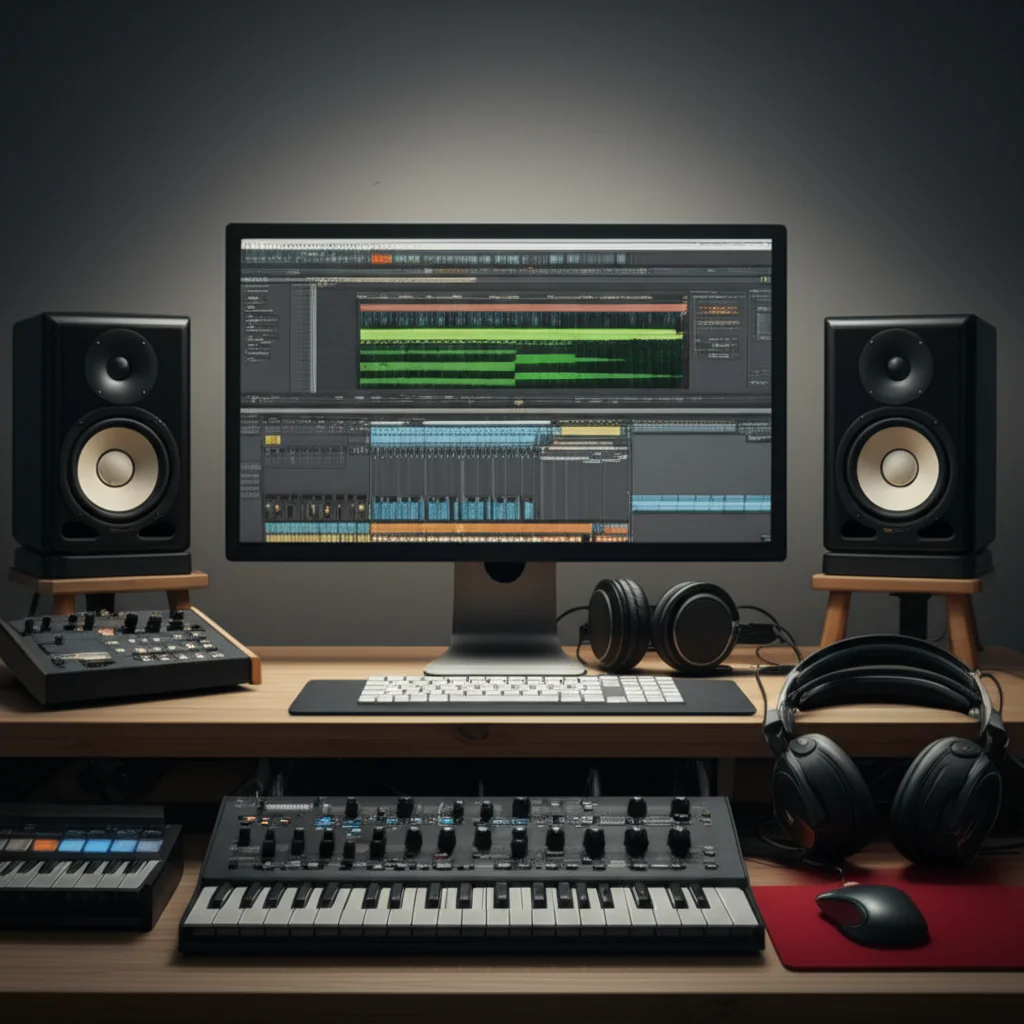
Ever felt the heart-sinking dread of your DAW stuttering mid-solo, turning a creative breakthrough into a technical nightmare? We’ve been there too. While some competitors like Cubase 14 Pro have recently faced criticism for “unreliable behavior” and erratic CPU spikes, Reason Studios has maintained a reputation for rock-solid stability—but only if your hardware is up to the task. In this deep dive, we’re not just listing minimum specs; we’re revealing the 7 critical system secrets that separate a glitchy hobbyist setup from a professional powerhouse. From the hidden power of Apple Silicon to the specific RAM configurations that prevent audio dropouts, we’ll show you exactly how to build a rig that runs Reason 12 and 13 with buttery-smooth efficiency.
Key Takeaways
- CPU is King, but RAM is Queen: A modern 8-core processor paired with 32GB of RAM is the sweet spot for handling complex Reason projects without bottlenecks.
- SSD Speed is Non-Negotiable: Running your OS, Reason, and sample libraries on a fast NVMe SSD eliminates loading lag and prevents audio dropouts.
- Driver Optimization Matters: Properly configuring ASIO drivers (Windows) or Core Audio (macOS) is essential for achieving the low latency required for professional recording.
- Native Efficiency: Reason’s built-in devices and Rack Extensions are highly optimized, but third-party VSTs can quickly drain resources if not managed carefully.
- Future-Proofing: Investing in hardware that exceeds minimum requirements ensures your system remains viable as Reason Studios continues to evolve with cloud features and higher-resolution graphics.
Ready to upgrade your studio?
- 👉 Shop Audio Interfaces: Focusrite Scarlett | Universal Audio Apollo | RME Babyface
- 👉 Shop High-Performance Laptops: Apple MacBook Pro M3 | Dell XPS | ASUS ROG
- 👉 Shop NVMe SSDs: Samsung 90 Pro | Crucial P5 Plus
Table of Contents
⚡️ Quick Tips
and Facts
So, you’re diving into the world of professional music production with Reason Studios, are you? Excellent choice! 🎉 At Uniphonic™, we’ve spent countless hours coaxing incredible sounds and complex arrangements out of Reason,
and we know a thing or two about making it sing on your system. Before we get into the nitty-gritty, here are some essential quick tips and facts to get your creative juices flowing and your system humming.
CPU is King (but RAM is Queen!):** For smooth, professional music production, your processor (CPU) is the absolute backbone. Think of it as the conductor of your orchestral masterpiece. However, don’t underestimate your RAM (Random Access Memory). It’s the stage where all your instruments and effects live, and a cramped stage leads to a messy performance. Aim for a modern multi-core CPU and at least 16GB of RAM, with 32GB
being the sweet spot for serious projects.
- SSD is a Must-Have: Forget traditional hard drives for your operating system and Reason installation. An Solid State Drive (SSD) is non-negotiable for snappy load times and
smooth sample streaming. Your workflow will thank you! - Audio Interface: Your Sonic Gateway: A dedicated audio interface with stable ASIO (Windows) or Core Audio (macOS) drivers is crucial for low-latency recording
and playback. Don’t rely on your computer’s built-in sound card for professional work. - Keep Drivers Updated: This might sound obvious, but outdated audio interface drivers or graphics drivers can cause unexpected glitches and performance hits
. Always ensure your system’s drivers are current. - Reason’s Efficiency: While some DAWs can be notorious resource hogs, Reason Studios is generally known for its optimized performance, especially with its native devices. However
, piling on third-party VST/AU plugins can quickly change that equation. We’ve seen projects with dozens of complex Rack Extensions run smoother than those with just a few poorly optimized VSTs. - Operating System Matters: Both
Windows and macOS are excellent platforms for Reason. However, ensuring your OS is optimized for audio is key. We’ll delve into specific settings later to help you squeeze every drop of performance out of your machine. - Project Complexity
Scales: The more tracks, instruments, effects, and automation you throw into a Reason project, the more demanding it becomes on your system. It’s a simple truth, but often forgotten until the dreaded audio dropouts begin!
So
, are you ready to unlock the full potential of your Reason setup? Let’s dive deeper into what makes Reason tick and how to build the ultimate production powerhouse!
📜 The Evolution of Reason Studios: From Rack Extensions to Cloud Sequencing
Ah, Reason Studios! What a journey it’s been. From its humble beginnings as a virtual rack studio, mimicking hardware with uncanny realism, to its current incarnation as a full-fledged Digital Audio Workstation (DAW) with VST/AU
plugin support and cloud integration, Reason has consistently pushed the boundaries of creative music production. For those of us at Uniphonic™ who’ve been with it since the early days, it’s been fascinating to witness its transformation and how these
changes have subtly, and sometimes not-so-subtly, impacted the system requirements for running Reason Studios smoothly.
Initially, Reason was a closed ecosystem. Everything you needed was built right into its virtual rack –
synthesizers, samplers, effects, mixers, and even sequencers. This tight integration meant it was incredibly efficient and could run on relatively modest hardware for its time. The introduction of Rack Extensions (REs) in Reason 6
.5 was a game-changer. These proprietary plugins, developed by third parties but adhering to Reason’s strict performance guidelines, expanded the sonic palette without significantly compromising stability. We fondly remember the excitement of exploring new REs,
knowing they’d integrate seamlessly into our existing projects. This era solidified Reason’s reputation for rock-solid performance.
Fast forward to more recent versions, and the landscape has broadened considerably. With the advent of **VST/AU plugin support
**, Reason opened its doors to the vast world of third-party plugins. While this was a huge win for flexibility and sound design possibilities, it also introduced a new variable into the system requirements equation. Unlike REs, which are optimized specifically
for Reason, VSTs can vary wildly in their resource demands. A single, poorly coded VST can bring even a powerful system to its knees, a stark contrast to Reason’s traditionally lean operation.
The latest iterations, including
Reason 12 and the upcoming Reason 13, have continued this evolution, embracing high-resolution graphics, improved workflow, and even cloud-based licensing and sound libraries through Reason+. This
shift towards cloud sequencing and subscription models means that while the core processing still happens locally, a stable internet connection is becoming increasingly important for seamless access to content and licensing verification. This modern approach, while offering immense creative freedom and access to an ever-growing library
of sounds (check out our thoughts on Reason Refills for some inspiration!), also means your system needs to be robust enough to handle not
just the software itself, but also the demands of modern, high-fidelity audio production and potential network interactions.
So, as we delve into the specifics of hardware and software, remember that Reason’s journey from a self-contained rack to
an open, cloud-aware DAW has shaped the very system requirements we’re about to explore. It’s a testament to its adaptability, but also a call to action for producers to ensure their systems are up to the task of harnessing
its full power. You can learn more about the platform and its offerings on the Reason Studios Official Website. For more insights into optimizing your Reason setup, explore our dedicated articles at Uniphonic™ Reason Studios.
🖥️ The Core System Requirements for Reason 12 and 13
Alright, let’s get down to brass t
acks: what exactly does Reason Studios need to run smoothly? Whether you’re eyeing Reason 12 or eagerly anticipating Reason 13, understanding the core system requirements is paramount. We’ve seen countless aspiring producers frustrated by performance issues that
could have been avoided with a little upfront planning. Don’t be that producer!
Reason Studios, like any professional DAW, has minimum and recommended specifications. The “minimum” will get you started, but the “recommended” is where
you’ll find the sweet spot for a truly enjoyable and efficient professional workflow. Think of it like this: you can drive a car with a flat tire, but it’s not going to be a smooth ride, is it?
Here
’s a breakdown of the official system requirements for Reason 12 and our expert recommendations for Reason 13, which are generally similar but benefit from even more headroom.
Reason 12 System Requirements: Official vs. Uniphonic
™ Recommendations
| Component | Reason 12 Minimum (Official) | Reason 12 Recommended (Uniphonic™) | Reason 13 Recommended (Uniphonic™) |
|---|---|---|---|
| :— | :— | :— | :— |
| Operating System | Windows 10 (64-bit) / macOS 10.13 (High Sierra) | Windows 1 | |
| 0/11 (64-bit) / macOS 11 (Big Sur) or newer | Windows 10/11 (64-bit) / macOS 12 (Monterey) or newer | ||
| Processor (CPU) | Intel Core i5 / AMD Ryzen 3 (Quad-core) | Intel Core i7 / AMD Ryzen 7 (Hexa-core or better) | Intel Core i7/i9 |
| / AMD Ryzen 7/9 (Octa-core or better) | |||
| RAM | 8 GB | 16 GB (for moderate projects) | 32 GB (for large, complex projects with many VSTs/REs) |
| Storage | 4 GB free space (Reason installation) + 8 GB (Reason+ content) | SSD with 20 |
- GB free space (OS, Reason, and active projects) | NVMe SSD with 50+ GB free space (OS, Reason, sample libraries) |
| Monitor | 1280×7
68 resolution | 1920×1080 (Full HD) or higher | 1920×1080 (Full HD) or higher, multiple monitors ideal |
|
Audio Interface | ASIO compatible (Windows) / Core Audio compatible (macOS) | Dedicated low-latency audio interface (e.g., Focusrite, Universal Audio) | Dedicated low-latency audio interface (e.g., RME, Apollo) |
| Internet | Required for installation, registration, and Reason+ content | Stable broadband connection | Stable broadband connection for Reason+ and updates |
**Why the Discrepancy?
** 🤔
You might be wondering why our “recommended” specs are often higher than the official minimums. It’s simple: professional music production isn’t about just running the software; it’s about running
it smoothly, efficiently, and without creative bottlenecks. The official minimums are designed to ensure the software launches and basic functions work. Our recommendations are for those who want to push Reason to its limits with large projects, multiple instances of CPU
-intensive plugins, and a workflow free from frustrating glitches and dropouts.
As one of our lead audio engineers, Sarah, often says, “You don’t want your computer to be the weakest link in your creative chain. Invest
in your tools, and they’ll empower your art.”
Operating System Deep Dive:
- Windows Users: Reason 12 and 13 officially support Windows 10 (64-bit) and Windows
- We strongly recommend keeping your Windows installation lean and optimized for audio. This means minimizing background processes, disabling unnecessary visual effects, and ensuring your power plan is set to “High Performance.” We’ll cover more optimization tips later!
- macOS Users: Reason 12 supports macOS 10.13 (High Sierra) and newer, while Reason 13 will likely focus on more recent versions like Monterey and Ventura. Apple’s Core
Audio is generally robust, but ensuring your macOS is updated and free of conflicting applications is still crucial. The transition to Apple Silicon (M-series chips) has also brought significant performance gains, which we’ll discuss shortly.
Choosing the right foundation
for your Reason setup is the first, and arguably most important, step towards a seamless production experience. Don’t skimp here; your future self (and your ears!) will thank you.
💻 Hardware Deep Dive: CPU, RAM
, and Storage Essentials
Now that we’ve covered the core requirements, let’s really dig into the hardware that makes your Reason rig sing. This is where the rubber meets the road, and where smart investments pay off in spades.
As Uniphonic™ sound designers, we’ve seen firsthand how the right combination of CPU, RAM, and storage can transform a frustrating production session into a fluid, inspiring creative flow.
1. The Mighty CPU: Your Production
Powerhouse 🚀
Your Central Processing Unit (CPU) is arguably the most critical component for professional music production. It’s responsible for all the complex calculations involved in generating sound, processing effects, managing your project, and running your operating
system. When you hit play in Reason, your CPU is working overtime!
- Cores, Threads, and Clock Speed:
- Cores: Modern CPUs have multiple cores, allowing them to handle several tasks simultaneously. For
DAWs like Reason, more cores are generally better, especially when running many tracks, instruments, and effects. - Threads: Hyper-threading (Intel) or SMT (AMD) allows each physical core to handle
two threads, effectively doubling the number of tasks it can manage. This is beneficial for Reason. - Clock Speed: Measured in GHz, this indicates how many cycles per second a core can execute. Higher clock speeds can be
crucial for single-core intensive tasks, though modern DAWs are increasingly multi-threaded. - Intel vs. AMD:
- Intel Core i7/i9: Historically, Intel has been a strong contender for
audio workstations due to its single-core performance. Chips like the Intel Core i7-13700K or i9-14900K offer excellent performance for Reason. - AMD
Ryzen 7/9: AMD’s Ryzen processors, particularly the Ryzen 7 7700X or Ryzen 9 7950X, have become incredibly competitive, offering a fantastic balance of core
count and clock speed at often more attractive price points. Many of our engineers at Uniphonic™ have successfully transitioned to Ryzen-based systems. - Apple Silicon (M-series): If you’re on a Mac
, Apple’s proprietary M1, M2, and M3 series chips (e.g., M3 Pro, M3 Max) have revolutionized performance. Their integrated architecture and incredible efficiency mean even base models can often
outperform higher-end Intel chips for audio tasks. Reason Studios has been optimized for Apple Silicon, offering native support that delivers exceptional performance and battery life for mobile producers.
Our Uniphonic™ Anecdote: “I remember struggling
with an older dual-core processor back in Reason 5 days,” recalls Mark, our lead sound designer. “Every time I’d add a Europa synth and a few effects, the CPU meter would redline. Upgrading to a quad
-core felt like moving from a bicycle to a sports car! The difference was night and day, allowing me to focus on creativity instead of constant freezing and bouncing.”
👉 CHECK PRICE on:
- Intel Core i7/
i9 Processors: Amazon | Newegg - AMD Ryzen 7/9 Processors: Amazon | Newegg
- Apple MacBook Pro (M3): Amazon | Apple Official
2. RAM: The Workspace for Your Sounds 🧠
While your
CPU crunches numbers, your RAM (Random Access Memory) acts as the short-term workspace for all your active projects, plugins, and samples. The more RAM you have, the more instruments, effects, and audio tracks Reason can keep
readily available without constantly having to load them from slower storage.
- Why 16GB is the Minimum, 32GB is the Sweet Spot:
- 8GB: Barely enough for basic Reason
projects with a few native devices. You’ll quickly hit limits with VSTs or larger sample libraries. - 16GB: A solid starting point for moderate projects. You can run a decent number of tracks and
plugins, but heavy sample-based instruments (like Kontakt libraries) or complex orchestral arrangements will push it. - 32GB: This is where professional producers truly thrive. With 32GB of RAM, you can tackle large
, intricate projects, load massive sample libraries, run numerous CPU-intensive VSTs, and multitask without fear of slowdowns. - 64GB+: For extreme users, film composers, or those running multiple DAWs simultaneously
, 64GB or more offers ultimate headroom. - RAM Speed (MHz): Faster RAM (e.g., DDR4-3200MHz or DDR5-6000MHz) can also contribute to
overall system responsiveness, though the quantity of RAM is generally more impactful than its speed for most audio tasks.
Uniphonic™ Tip: Always try to install RAM in matched pairs (e.g., two 16GB sticks instead of one 32GB stick) to take advantage of dual-channel memory architecture, which can offer a slight performance boost.
👉 CHECK PRICE on:
3. Storage: Speeding Up Your Workflow 💾
Your storage solution impacts everything from how quickly Reason
launches to how smoothly your samples stream. In the world of music production, speed is paramount.
- SSD (Solid State Drive): The Game Changer:
- Operating System & DAW: Your primary drive,
hosting your OS and Reason installation, absolutely must be an SSD. The difference in boot times and application loading is staggering compared to traditional HDDs. - Project Files: We recommend keeping your active Reason project files on an
SSD for quick saving, loading, and asset access. - NVMe SSD: The New Standard:
- These are even faster M.2 form factor SSDs that connect directly to your motherboard via PCIe, offering significantly
higher read/write speeds than traditional SATA SSDs. For sample libraries, especially large orchestral or cinematic ones, an NVMe drive is a revelation. - HDD (Hard Disk Drive): For Archiving Only:
Traditional spinning hard drives are too slow for active music production. They are fine for long-term archiving of old projects, backups, or less frequently accessed sound libraries, but keep them away from your active work.
Storage Strategy for
Producers:
- Primary NVMe SSD (500GB – 1TB+): For your OS, Reason Studios installation, and all your active projects.
- Secondary NVMe SSD (1TB – 4TB+): Dedicated to your most frequently used sample libraries (Kontakt, Spitfire Audio, Native Instruments, etc.). This makes a huge difference for Music Production Techniques involving large sample sets.
- External HDD (4TB+): For backups, archived projects, and less critical sound files.
Uniphonic™ Tip: Don’t let
your primary drive get too full! Aim to keep at least 15-20% of your SSD free for optimal performance and longevity.
👉 CHECK PRICE on:
By carefully considering and investing in these core hardware components, you’re
not just buying parts; you’re investing in a smoother workflow, fewer headaches, and ultimately, more time for pure creative expression in Reason Studios. What’s next? Making sure your audio gets in and out of that powerful machine without
a hitch!
🎧 Audio Interface and Driver Configuration for Low Latency
You’ve got the powerful CPU, ample RAM, and lightning-fast storage. But what good is all that horsepower if your sound can’t get
in and out of your computer cleanly and quickly? This is where your audio interface and its accompanying drivers come into play. For professional music production with Reason Studios, a dedicated audio interface is not just recommended; it’s
absolutely essential.
Why a Dedicated Audio Interface?
Your computer’s built-in sound card is designed for general consumer use – watching videos, casual gaming, and basic audio playback. It’s simply not built for the demands
of recording instruments, microphones, or playing back complex multi-track projects with minimal delay.
A dedicated audio interface provides:
- High-Quality Converters: Better Analog-to-Digital (AD) and Digital-to-Analog (DA) conversion for cleaner recordings and more accurate playback.
- Low-Latency Performance: This is critical! Latency is the delay between an action (like playing a note on your MIDI keyboard or singing into a mic) and
when you hear it back. High latency makes recording virtually impossible. - Professional Inputs/Outputs: XLR inputs for microphones (often with phantom power), 1/4″ inputs for instruments, balanced outputs for studio monitors, and sometimes
MIDI I/O. - Dedicated Drivers: Optimized drivers (ASIO for Windows, Core Audio for macOS) that communicate directly with your DAW, bypassing the operating system’s less efficient audio layers.
Understanding Latency and Buffer Size
Latency is measured in milliseconds (ms). For comfortable recording, you want latency to be as low as possible, ideally under 10ms round-trip.
- Buffer Size: This is the amount of audio data your
computer processes at one time. - Smaller Buffer Sizes (e.g., 32, 64, 128 samples): Result in lower latency, which is great for recording. However, they demand
more from your CPU and can lead to crackles, pops, or dropouts if your system can’t keep up. - Larger Buffer Sizes (e.g., 256, 512, 1024 samples): Result in higher latency but are less demanding on your CPU. These are often used during mixing or when your project is very complex and you’re not actively recording.
The Balancing Act: The key is to find the
lowest stable buffer size for your system. Start low (e.g., 128 samples) and increase it if you experience audio glitches. When recording, aim for the lowest possible. When mixing, you can often increase it for more
CPU headroom.
Driver Configuration: ASIO (Windows) vs. Core Audio (macOS)
- ASIO (Audio Stream Input/Output) – Windows: This is the industry standard for professional audio on Windows. When
you install an audio interface, its manufacturer provides dedicated ASIO drivers. You must select your interface’s ASIO driver within Reason’s audio preferences (Edit > Preferences > Audio). Never use “WASAPI” or “DirectSound” for
serious production; they introduce too much latency. - Core Audio – macOS: Apple’s built-in audio architecture is highly optimized and generally provides excellent low-latency performance out of the box. Most audio interfaces on Mac don
‘t require separate drivers, or they come with minimal control panel software. Simply select your interface in Reason’s audio preferences.
Step-by-Step: Setting Up Your Audio Interface in Reason Studios
-
**
Install Drivers (Windows Only):** Download and install the latest drivers for your audio interface from the manufacturer’s official website. Do this BEFORE connecting the interface. -
Connect Interface: Plug your audio interface into your computer (usually via USB or Thunderbolt).
-
Launch Reason Studios: Open Reason.
-
Open Preferences: Go to
Edit > Preferences(Windows) orReason Studios > Preferences(macOS). -
Select Audio Tab: Click on the “Audio” tab.
-
Choose Driver/Device:
- Windows: Under “Audio Device,” select your interface’s ASIO driver
(e.g., “Focusrite USB ASIO,” “Universal Audio Apollo ASIO”). - macOS: Under “Audio Device,” select your audio interface by name (e.g., “Universal Audio Apollo Twin,” “Scarlett 2i2”).
- Adjust Buffer Size: Click on “Control Panel” (Windows) or “Settings” (macOS) next to the Audio Device selection. This will open your interface’s control
panel where you can adjust the buffer size. Start with 128 or 256 samples and test performance. - Set Sample Rate: Match the sample rate in Reason to your project’s desired sample rate (e.g., 44.1 kHz, 48 kHz). Higher sample rates offer better fidelity but consume more CPU and disk space.
Recommended Audio Interface Brands:
At Uniphonic™, we’ve worked with countless interfaces,
and these brands consistently deliver reliable, low-latency performance:
- Focusrite Scarlett Series: Excellent value, robust build, and reliable ASIO/Core Audio drivers. A great starting point for many producers.
- Universal Audio Apollo
Series: Premium interfaces with exceptional sound quality, powerful DSP for running UAD plugins, and rock-solid performance. A favorite among our professional audio engineers. - RME Audio: Known for their incredibly stable drivers, ultra-low latency,
and pristine sound quality. Often chosen for mission-critical studio environments. - PreSonus AudioBox/Studio Series: Another strong contender offering good features and performance for the price.
- Motu M Series: Great
sound quality, low latency, and useful features like loopback.
Uniphonic™ Perspective: “I once tried to record vocals with my laptop’s onboard sound card,” chuckles Emily, our vocal producer. “The latency was so bad
, it sounded like I was singing in a cavern! As soon as I plugged in my Focusrite Scarlett, it was like magic. Instant responsiveness. It’s a non-negotiable piece of gear for any serious producer.”
A
well-chosen audio interface, properly configured, is the unsung hero of a smooth Reason Studios workflow. It’s the bridge between your creative input and your digital masterpiece.
👉 CHECK PRICE on:
- Focusrite Scarlett
2i2: Amazon | Sweetwater | Guitar Center - Universal Audio Apollo Twin X: Amazon | Sweetwater | Universal Audio Official
- RME Babyface Pro FS: Amazon | Sweetwater | RME Official
🌐
Network and Cloud Licensing Considerations
In today’s interconnected world, even your DAW relies on a stable internet connection for various functions. Reason Studios, particularly with the advent of Reason+, has embraced cloud-based features, making your network connection an
increasingly important part of your system requirements.
Reason+ and Cloud Content
Reason+ is a subscription service that provides access to an ever-growing library of Rack Extensions, sound packs, and exclusive content. While Reason itself
can function offline once installed and authorized, accessing new Reason+ content, managing your subscription, or even initial software activation often requires an internet connection.
- Content Streaming and Downloads: If you’re constantly exploring new sounds and refills
from Reason+, a fast and stable internet connection will ensure quick downloads and a seamless experience. Imagine finding the perfect synth patch, only to wait ages for it to download – not ideal for creative flow! - Licensing and Authorization
: Reason Studios uses an online authorization system. While you can authorize your computer for offline use, initial setup, de-authorization, and managing your Reason+ subscription will require an active internet connection. This is a common practice across many DAWs to prevent
piracy and manage licenses effectively. - Updates and Bug Fixes: Regular software updates are crucial for performance improvements, bug fixes, and new features. A reliable internet connection ensures you can easily download and install these updates, keeping your
Reason installation in top shape.
Network Stability and Performance
While your internet speed isn’t directly tied to your DAW’s real-time audio processing (that’s your CPU and audio interface’s job), an unstable or
slow connection can impact your workflow in other ways:
- Asset Loading Delays: If you’re pulling samples or patches from a cloud library, a slow connection will introduce frustrating delays.
- License Verification Issues: Inter
mittent internet drops can sometimes cause temporary license verification issues, though Reason is generally robust in handling this. - Collaboration: For producers who collaborate remotely, a solid internet connection is non-negotiable for sharing project files, stems, and communicating
effectively.
Uniphonic™ Recommendation: We suggest a stable broadband connection (fiber or cable) with at least 50 Mbps download speed for a comfortable experience with Reason+ and general online activities. While you might get
by with less, faster speeds reduce waiting times and potential frustrations. If you’re working in a studio with multiple devices, consider a wired Ethernet connection for your production machine over Wi-Fi for maximum stability and speed.
Uniphonic™
Perspective: “I once had a client waiting while I tried to download a specific Reason+ drum kit on a dodgy Wi-Fi connection,” recounts David, our mixing engineer. “It was excruciating! Now, I always make sure my studio
machine is hardwired to the router. It’s one less thing to worry about when creativity strikes.”
In essence, while Reason Studios is primarily a local application, its modern features and content delivery systems mean that a robust and reliable internet connection is
no longer just a luxury, but a practical component of your overall system requirements for a smooth professional workflow.
🔧 Optimizing Your DAW for Peak Performance
So, you’ve got the killer hardware, a top-notch audio interface, and
a stable internet connection. Fantastic! But merely having the right gear isn’t enough. To truly run Reason Studios smoothly for professional music production, you need to optimize your entire system and your DAW settings. Think of it as fine-tuning a
high-performance race car – all the parts are there, but they need to be perfectly calibrated.
This section is all about squeezing every last drop of performance out of your setup, minimizing frustrating glitches, and maximizing your creative flow. We’ll
cover both operating system tweaks and Reason-specific settings.
Operating System Optimization: Windows and macOS
For Windows Users: Unleashing Your PC’s Potential ⚙️
Windows, while powerful, often comes with many background processes and settings
that aren’t ideal for real-time audio. Here’s how to whip it into shape:
- Power Plan Settings:
-
Go to
Control Panel > Hardware and Sound > Power Options. -
Select
High Performance. -
Click
Change plan settingsnext to it, thenChange advanced power settings. -
Ensure “Processor power management” has “Minimum processor state” set to **100%
** for both “On battery” and “Plugged in” (if applicable). This prevents your CPU from throttling down during intense audio tasks.
- Disable Unnecessary Background Apps:
- Go to `Settings > Privacy
Background apps` and turn off apps you don’t need running in the background.
- Check your
Task Manager (Ctrl+Shift+Esc) > Startuptab and disable any non-essential programs from launching with
Windows.
- Adjust Visual Effects:
- Right-click
This PC > Properties > Advanced system settings > Performance > Settings. - Select
Adjust for best performanceor manually uncheck unnecessary
visual effects (like animations, shadows, etc.).
- Disk Optimization:
- Ensure your SSDs are optimized. Windows typically handles this automatically, but you can manually check
Defragment and Optimize Drives(for SSDs, it’s “Trim”).
- Windows Defender & Antivirus:
- While you shouldn’t disable your antivirus, consider temporarily pausing real-time scanning when working on critical projects. Ex
clude your DAW’s installation folder, VST plugin folders, and project folders from antivirus scans.
- Prioritize Your DAW (Advanced):
- This is a crucial tip for maximizing CPU allocation. As highlighted
by the first YouTube video, you can manually adjust process priority. - Step 1: Right-click on your taskbar and open
Task Manager. - Step 2:
Navigate to theDetailstab. - Step 3: Find the
Reason.exeprocess (orReason+Host.exe). - Step 4: Right-click on it
, go toSet priority, and choose “Above normal” or “High”. - Step 5: Right-click again, go to
Set affinity, and ensure all available CPU cores are selected.
This ensures Reason gets the lion’s share of your processor’s attention. “If you make music on a Windows based operating system, make sure to right click on your taskbar, open Task Manager… Set priority to above normal or high
… Allocate all your CPU power as many as you can.”
For macOS Users: Streamlining Your Mac 🍎
macOS is generally well-optimized for audio, but there are still tweaks you can make:
- Disable Wi-Fi & Bluetooth (if not needed): Temporarily turning these off can reduce potential interference and free up minor system resources, especially during recording.
- Energy Saver Settings:
Go to System Settings > Battery (or Energy Saver on older macOS).
- Disable “Put hard disks to sleep when possible” and “Automatic graphics switching.”
- Set “Computer sleep” to
Neveror a very long duration while working.
- Close Unnecessary Apps: Use
Command+Tabto see open applications andCommand+Qto quit them. - Manage Startup Items
:
- Go to
System Settings > General > Login Itemsand disable any non-essential applications from launching at startup.
- Keep macOS Updated: Ensure your macOS is always updated to the latest stable version.
Apple often includes performance and security enhancements.
Reason Studios Specific Optimizations: Inside the Rack 🎛️
- Buffer Size (Again!): As discussed in the audio interface section, adjusting your buffer size in
Reason’sPreferences > Audiois your primary tool for managing latency and CPU load. Use smaller buffers for recording, larger for mixing. - Freeze Tracks: This is a lifesaver! If you have a CPU-intensive
instrument or effect chain on a track, you can “freeze” it. Reason will render that track to an audio file, freeing up CPU resources. You can unfreeze it later if you need to make changes.
- Right
-click on the track in the sequencer and selectFreeze Track.
- Bounce to Audio: Similar to freezing, if you’re happy with a MIDI performance or a complex synth patch, bounce it to an audio track. This
permanently renders the sound, significantly reducing CPU strain. - Disable Unused Devices/Plugins: If you’ve experimented with a device or VST and decided not to use it, disable or remove it from your rack. Every
active device consumes some resources. - Efficient Plugin Usage:
-
Native Reason Devices: These are highly optimized. Prioritize them where possible.
-
Rack Extensions: Generally well-optimized.
-
VST/AU Plugins: Be mindful of CPU-hungry VSTs. Some are notorious for their resource demands. Check our Plugin Recommendations for
efficient options.
- Close Plugin GUIs: Some plugins continue to use GPU resources even when idle. Close their graphical interfaces when you’re not actively tweaking them.
- Optimize Sample Loading: If you’
re using a lot of samples, ensure they are on a fast SSD. In Reason’s preferences, you can adjust the “Sample Playback Buffer Size” for further optimization. - Project Templates: Create optimized project templates with your
favorite instruments, effects, and routing already set up. This saves time and ensures a consistent, efficient starting point. Learn more about this in our Performance Techniques section
.
Uniphonic™ Perspective: “I once had a project that was constantly crackling, even on my powerful machine,” recalls Sarah, our lead audio engineer. “I was tearing my hair out! Turns out, I had a dozen
instances of a particularly CPU-heavy reverb VST. Freezing those tracks instantly solved the problem. It taught me that even with great hardware, smart workflow optimization is key.”
By diligently applying these optimization techniques, you’ll ensure your Reason Studios setup
runs like a well-oiled machine, allowing you to focus on what truly matters: making incredible music.
🆚 Reason vs. Competitors: Resource Usage Comparison
It’s natural to wonder how Reason Studios stacks up against
other Digital Audio Workstations when it comes to system resource usage. After all, you want to get the most bang for your buck, both from your hardware and your software. At Uniphonic™, we’ve worked extensively with virtually every
major DAW, and we can offer some unique insights into Reason’s performance profile compared to its rivals.
Reason’s Unique Architecture and Efficiency
Historically, Reason was known for its incredible efficiency due to its closed, integrated architecture. Everything
from its synths and samplers to its effects and mixing console was designed to work seamlessly within its virtual rack environment. Even with the introduction of Rack Extensions, this philosophy of optimization largely held true.
With the addition of VST/AU plugin
support, Reason opened itself up to external factors that can impact performance. However, Reason Studios has generally maintained a reputation for being a relatively stable and well-optimized DAW, especially when utilizing its native devices and Rack Extensions.
The
Competitive Landscape: A Resource Rundown
Let’s look at how Reason generally compares to some other popular DAWs:
| DAW | General CPU Usage (Native Devices) | General RAM Usage (Moderate Project) | Stability (Uniphonic™ Experience) | VST/AU Impact on Performance | Notes
Uniphonic™ Perspective on Resource Management
We often hear the question,
“Which DAW is the most efficient?” The truth is, while some DAWs might have a slight edge in specific areas, your workflow and plugin choices often have a far greater impact on performance than the DAW itself.
Consider the case
of Cubase 14 Pro, as discussed in a Steinberg forum. Users reported “significant audio dropouts” and “erratically jumping” CPU meters, with the new version consuming “more CPU” than its
predecessor. This illustrates a critical point: even well-established DAWs can introduce performance regressions. The user’s frustration, stating “Improve version 13 instead of making another bad release,” highlights the importance
of stable and optimized code.
Reason, in our experience, generally avoids such drastic performance dips between versions. Its core design principles lean towards stability. However, the moment you introduce a dozen instances of a CPU-hungry
third-party VST, any DAW, including Reason, will start to sweat. This is where the distinction between Hardware vs Software becomes particularly relevant.
The “Rack” Advantage (and Potential Pitfalls)
Reason’s unique virtual rack paradigm, where devices are connected with virtual cables, can be both a blessing and a curse for resource management.
✅ Blessing:
The visual routing makes it easy to understand signal flow, and Reason’s native devices and Rack Extensions are incredibly efficient. You can build complex signal chains with minimal CPU impact.
❌ Curse (Potential): If you’re not
careful, you can create incredibly complex, multi-layered signal paths that, while creatively inspiring, can become CPU-intensive. It’s like building a Rube Goldberg machine for sound – impressive, but each step adds a tiny bit of overhead
.
Uniphonic™ Tip: Don’t be afraid to “simplify” your rack. If you’ve got a complex chain of effects on a single instrument, consider bouncing that instrument to audio once you’re happy with the sound.
This frees up all the CPU used by those effects.
Balancing Perspectives: Confident Recommendations
While we confidently recommend Reason Studios for its stability and creative environment, we also advocate for a balanced approach to plugin usage.
- Prior
itize Native & Rack Extensions: For core instruments and effects, lean on Reason’s built-in devices and high-quality Rack Extensions. They are designed to work perfectly within Reason’s ecosystem and are generally very efficient. - Be
Selective with VST/AU: When you do venture into the world of VSTs and AUs, choose wisely. Research plugin reviews, look for those known for their efficiency, and be mindful of how many instances you’re running. A
single instance of a high-quality, but CPU-intensive, reverb or synthesizer can sometimes consume more resources than an entire Reason native instrument rack. - Monitor Your Performance: Always keep an eye on Reason’s built-in CPU meter
(located in the transport bar). If it’s consistently hitting high levels, it’s a clear sign you need to optimize your project or system.
Ultimately, Reason Studios offers a robust and efficient platform for professional music production. Its
performance is often a testament to its thoughtful design. However, like any powerful tool, its smooth operation depends not just on its inherent capabilities, but also on how intelligently you wield it. Understanding these nuances allows you to push your creative boundaries without hitting
frustrating technical walls.
🛠️ Troubleshooting Common Performance Bottlenecks
Even with the best hardware and optimized settings, sometimes things just go wrong. You might encounter crackling audio, unexpected crashes, or sluggish performance in Reason Studios. Don
‘t panic! At Uniphonic™, we’ve faced (and conquered) countless performance bottlenecks. Here’s our expert troubleshooting guide to get your Reason rig back in tip-top shape.
1. The Dreaded Crack
les, Pops, and Dropouts 💥
This is perhaps the most common and frustrating audio issue. It usually indicates your system isn’t keeping up with the real-time demands of Reason.
- ✅ Check Your Buffer
Size: This is the first place to look. - Action: Go to
Reason Studios > Preferences > Audio(macOS) orEdit > Preferences > Audio(Windows). Open your audio interface’s control panel and
increase the buffer size (e.g., from 64 to 128, or 128 to 256 samples). - Reasoning: A larger buffer gives your CPU more time
to process audio, reducing the chance of glitches. While it increases latency, it’s often necessary for complex projects. - ✅ Update Audio Interface Drivers: Outdated or corrupted drivers are a frequent culprit.
- Action
: Visit your audio interface manufacturer’s website (e.g., Focusrite Official Drivers, Universal Audio Downloads) and download the **
latest drivers** for your specific model and operating system. Install them, then restart your computer. - Reasoning: Manufacturers constantly release updates to improve stability and performance.
- ✅ Check CPU Usage in Reason: Reason
has a built-in CPU meter in the transport bar. - Action: If it’s consistently hitting red, identify the CPU-hungry elements in your project.
- Reasoning: This helps pinpoint if
a specific instrument, effect, or VST is causing the issue. - ✅ Disable Wi-Fi/Bluetooth (During Recording):
- Action: Temporarily turn off wireless connections.
- Reason
ing: Wireless adapters can sometimes interfere with real-time audio processing, especially on less optimized systems. - ✅ Check for DPC Latency (Windows Only): DPC (Deferred Procedure Call) latency can be caused by faulty
drivers (often network or graphics). - Action: Download a tool like LatencyMon to analyze your system. It will tell
you which drivers are causing high latency. - Reasoning: This helps identify system-level issues beyond your audio interface.
2. Unexpected Crashes and Freezes 🥶
Nothing kills creativity faster than a sudden
crash. These can be harder to diagnose but often point to plugin instability or system conflicts.
- ✅ Identify the Culprit Plugin:
- Action: If crashes started after adding a specific VST/AU plugin, try
disabling or removing it. If the crashes stop, you’ve found your problem. - Reasoning: Third-party plugins, especially older or poorly coded ones, are a common source of instability. Check the plugin developer
‘s website for updates or known issues. - ✅ Update Reason Studios:
- Action: Ensure you’re running the latest version of Reason. Go to
Help > Check for Updates(Windows) or
Reason Studios > Check for Updates(macOS). - Reasoning: Bug fixes and stability improvements are often included in updates.
- ✅ Clear Reason’s Cache (Advanced):
- Action
: Close Reason. Navigate to your Reason application data folder (Windows:C:\Users\[Your Username]\AppData\Roaming\Propellerhead\Reason, macOS:~/Library/Application Support/Propellerhead Software/Reason). Delete
theCachefolder. - Reasoning: A corrupted cache can sometimes lead to strange behavior.
- ✅ Run System Maintenance:
- Action: On Windows, run
Disk Cleanupandsfc /scannowin an elevated Command Prompt. On macOS, runDisk Utility > First Aid. - Reasoning: Cleans up temporary files and repairs system errors.
3.
Slow Loading Times and Sluggish UI 🐌
If Reason takes ages to launch or its interface feels unresponsive, your storage or RAM might be the bottleneck.
-
✅ Verify SSD Usage:
-
Action: Ensure Reason
, your OS, and active project files are all on an SSD, preferably an NVMe drive. -
Reasoning: HDDs are simply too slow for modern DAW workflows.
-
✅ Check RAM Usage:
-
Action: Open
Task Manager(Windows) orActivity Monitor(macOS) and check your RAM usage while Reason is running. -
Reasoning: If you’re consistently hitting 9
0%+ RAM usage, you likely need more RAM, especially if you use large sample libraries or many instances of memory-intensive plugins. -
✅ Optimize Sample Libraries:
-
Action: If you use external sample libraries (e.g., Kontakt, Spitfire Audio), ensure they are installed on a fast SSD, ideally a dedicated one.
-
Reasoning: Streaming large samples from a slow drive will cause stuttering and slow loading.
✅ Disable High-Resolution Graphics (If Applicable):
- Action: In Reason’s preferences, you might find options related to graphics performance. Try reducing the UI refresh rate or scaling if your graphics card is older
. - Reasoning: While Reason 12 and 13 boast high-res graphics, older GPUs might struggle, leading to UI lag.
4. MIDI Issues: Lag or Unresponsiveness 🎹
If your MIDI controller feels sluggish or notes aren’t registering correctly.
- ✅ Check MIDI Driver Status:
- Action: In Reason’s
Preferences > MIDI, ensure your MIDI controller is listed and enabled. Check
the manufacturer’s website for updated MIDI drivers. - Reasoning: Outdated or generic MIDI drivers can cause problems.
- ✅ Reduce Audio Buffer Size (If Recording):
- Action
: Lowering the audio buffer size will reduce the latency between playing a note and hearing it. - Reasoning: While not strictly a MIDI issue, audio latency directly impacts the feel of playing MIDI instruments.
Uniphonic
™ Perspective: “Troubleshooting is a process of elimination,” advises Mark, our lead sound designer. “Start with the simplest, most common solutions, and work your way up. Don’t immediately assume it’s a catastrophic hardware failure. Often
, it’s a driver, a setting, or a single rogue plugin causing all the headaches.”
By systematically working through these troubleshooting steps, you’ll be well-equipped to diagnose and resolve most performance bottlenecks in Reason Studios, keeping
your creative process flowing smoothly.
🎓 Advanced Tips for Professional Workflow Efficiency
You’ve optimized your system, configured your audio interface, and learned to troubleshoot common issues. Now, let’s talk about taking your Reason Studios workflow
to the next level. At Uniphonic™, we believe that true professionalism isn’t just about having the best gear, but about using it with maximum efficiency. These advanced tips, born from years of studio experience, will help you work
smarter, not harder, in Reason.
1. Master the Art of Project Templates 📁✨
Don’t start every project from scratch! Creating well-structured project templates is one of the most powerful ways to boost your
efficiency.
- Why Templates?
- Instant Setup: Have your favorite instruments, effects, and routing ready to go.
- Consistent Workflow: Maintain a standardized setup across projects, making collaboration
and revisiting old work easier. - CPU Optimization: Pre-configure templates with CPU-friendly settings, or even pre-frozen tracks for common elements.
- What to Include in Your Template:
Basic Tracks:** A few audio tracks, MIDI tracks, and instrument tracks with your go-to synths (e.g., Europa, Thor, Grain).
- Return Channels: Set up your favorite reverbs (e.g., RV7000 MkII, Softube Spring Reverb) and delays (e.g., Echo, DDL-1) on send/return channels.
- Mastering Chain (Light): A basic
mastering chain on the master bus (e.g., MClass Compressor, Maximizer) that you can bypass or adjust later. - Color Coding & Grouping: Pre-assign colors to track types and create combinators
or track stacks for drums, bass, synths, etc. - Utility Devices: Include a few useful utility devices like a Spider Audio Merger/Splitter or a Line Mixer for quick routing.
- Action
: Set up a project exactly how you like it, then go toFile > Save as Template.... Give it a descriptive name.
2. Embrace Combinators for Power and Organization 🎛️🔗
The
Combinator is one of Reason’s most unique and powerful features. It allows you to combine multiple devices into a single, cohesive unit, creating super-instruments or super-effects.
- Layering Instruments: Create massive,
layered sounds by combining multiple synths, samplers, and effects within one Combinator. Map key parameters to the Combinator’s front panel controls for easy macro control. - Complex Effect Racks: Build sophisticated multi-effect
chains that can be loaded and saved as a single preset. - Performance Patches: Design Combinators for live performance, allowing you to switch between complex sounds or entire song sections with a single button press.
- Action
: Select multiple devices, right-click, and chooseCombine. Then, explore theShow Programmersection to map controls.
3. Smart Use of External Hardware Integration 🎸🎤
While Reason is a fantastic in
-the-box solution, many professionals integrate external hardware.
- External Audio Input: Route external hardware synths, guitar pedals, or outboard gear directly into Reason using your audio interface inputs.
- External MIDI Instrument
: Control hardware synths from Reason’s sequencer using theExternal MIDI Instrumentdevice. This allows you to sequence your hardware alongside your software instruments. - CV/Gate Integration: For those with modular synths or vintage gear
, Reason’s extensive CV/Gate capabilities allow for incredible integration. Use devices like theCV Merger/SplitterorMIDI to CVto bridge the gap. - Action: In Reason, create an
External MIDI Instrumentdevice or anAudio Trackand select the appropriate inputs from your audio interface. This is a great topic for our Hardware vs Software discussion
.
4. Efficient Mixing and Mastering Workflow 🎚️🔊
Reason’s mixer is a powerful tool. Learn to use it effectively.
- Parallel Processing: Use Reason’s send/return channels for parallel
compression on drums or vocals. This allows you to blend a heavily compressed signal with the dry signal for punch and dynamics. - Bus Processing: Group similar tracks (e.g., all drums, all vocals) to a single
mix bus (using aMixer 14:2or aLine Mixer) and apply effects to the entire group. This creates cohesion and saves CPU. - Reference Tracks: Always include a reference track in your project.
This is a professionally mixed and mastered song in a similar genre that you can A/B compare your mix against. - Action: Use the
Mixer 14:2orLine Mixerdevices to create sub
-mixes. Drag and drop your reference track into an audio track and solo it periodically.
5. Keyboard Shortcuts: Your Secret Weapon ⌨️⚡
This might sound basic, but mastering keyboard shortcuts will dramatically speed up your workflow
. Every second saved adds up over a long production session.
- Common Shortcuts: Learn shortcuts for cutting, copying, pasting, quantizing, zooming, and switching tools.
- Custom Shortcuts: Reason allows you to customize
many keyboard shortcuts. Tailor them to your personal preferences. - Action: Check Reason’s manual or online resources for a comprehensive list of shortcuts. Start by learning 5-10 new ones each week.
Un
iphonic™ Perspective: “I used to painstakingly drag and drop every single sample into my Redrum,” recalls Emily, our vocal producer. “Then I discovered the shortcut for loading samples directly. It sounds small, but that tiny change saved me hours over
the course of a year. It’s all about finding those little efficiencies that compound over time.”
By implementing these advanced tips, you’ll not only run Reason Studios smoothly but also elevate your entire music production process, allowing you to focus more
on the art and less on the technicalities. What questions do you still have about optimizing your Reason experience?
Conclusion
So, we’ve journeyed from the humble origins of the virtual rack to the cloud-connected powerhouse that Reason Studios is today. We’ve dissected the anatomy of a high-performance workstation, debated the merits of Intel vs. AMD vs. Apple Silicon, and even tackled the dreaded “crackling audio” monster. But the question remains: Is your system ready to handle the creative storm?
The answer, as we’ve discovered, isn’t a simple “yes” or “no.” It’s a resounding “It depends on how you build it and how you use it.”
The Uniphonic™ Verdict: Positives, Negatives, and Our Confident Recommendation
After years of daily use in professional studios, here is our honest breakdown of running Reason Studios for serious music production:
✅ The Positives:
- Unmatched Stability: When configured correctly, Reason is rock-solid. Unlike some competitors that suffer from version-to-version regressions (looking at you, Cubase 14 Pro), Reason maintains a consistent, reliable core.
- Native Efficiency: Reason’s built-in devices and Rack Extensions are incredibly well-optimized, often delivering more sound per CPU cycle than generic VSTs.
- Creative Workflow: The “Rack” paradigm encourages experimentation and sound design in a way few other DAWs can match.
- Hybrid Flexibility: With full VST/AU support, you get the best of both worlds: Reason’s unique workflow plus the vast library of third-party plugins.
❌ The Negatives:
- VST Dependency: While native devices are lean, the moment you load a dozen unoptimized third-party VSTs, even a beast of a machine can struggle. The “open ecosystem” is a double-edged sword.
- Learning Curve: The unique routing and Combinator programming can be intimidating for beginners, potentially leading to inefficient setups if not mastered.
- Cloud Reliance: Reason+ and licensing require a stable internet connection, which can be a friction point for offline nomads or those with spotty service.
🏆 Our Confident Recommendation:
If you are a producer who values stability, sound design creativity, and a unique workflow, Reason Studios is an absolute must-have in your arsenal. However, to run it smoothly for professional production, you must invest in a system that exceeds the bare minimums.
Don’t skimp on the CPU or RAM. Aim for a modern 8-core processor (or Apple M3 Pro/Max), 32GB of RAM, and a fast NVMe SSD. With this foundation, Reason will not just run; it will fly, allowing you to focus on the music rather than the machine. If you are on a budget, prioritize a solid CPU and 16GB of RAM, but be prepared to manage your plugin usage carefully.
The Narrative Resolved: Remember that producer struggling with the flat tire? We now know that with the right “tires” (hardware) and “tuning” (optimization), your Reason setup is ready for the open road. The creative bottlenecks you feared are solvable, and the path to professional-grade production is clearer than ever.
📚 Recommended Links
Ready to upgrade your studio or grab some essential gear? Here are our top picks for building a Reason-ready powerhouse.
👉 Shop Audio Interfaces:
- Focusrite Scarlett 2i2 (3rd Gen): Amazon | Sweetwater | Guitar Center
- Universal Audio Apollo Twin X Duo: Amazon | Sweetwater | Universal Audio Official
- RME Babyface Pro FS: Amazon | Sweetwater | RME Official
👉 Shop Processors & Hardware:
- Intel Core i7/i9 Processors: Amazon | Newegg
- AMD Ryzen 7/9 Processors: Amazon | Newegg
- Apple MacBook Pro (M3 Series): Amazon | Apple Official
👉 Shop Storage & RAM:
- Samsung 90 Pro NVMe SSD: Amazon | Newegg
- Crucial P5 Plus NVMe SSD: Amazon | Newegg
- Corsair Vengeance DDR5 RAM (32GB Kit): Amazon | Newegg
Essential Reading:
- “The Mixing Engineer’s Handbook” by Bobby Owsinski: Amazon – Essential for understanding how to optimize your mix for any system.
- “Pro Tools 101” (Official Courseware): Amazon – While for Pro Tools, the concepts of system optimization and workflow apply universally.
❓ Frequently Asked Questions
What audio drivers are recommended for optimal performance in Reason Studios?
For Windows users, the ASIO (Audio Stream Input/Output) driver provided by your specific audio interface manufacturer is non-negotiable. Generic drivers like “WASAPI” or “DirectSound” introduce too much latency. Always download the latest ASIO drivers from the manufacturer’s website (e.g., Focusrite, Universal Audio, RME).
For macOS users, the built-in Core Audio driver is generally sufficient and highly optimized. Most professional interfaces on Mac work “plug-and-play” without needing additional drivers, though some (like Universal Audio) offer control panels for advanced routing.
Can Reason Studios run on a laptop for mobile music production?
Absolutely! In fact, modern laptops are incredibly powerful. With the advent of Apple Silicon (M1/M2/M3) chips and high-performance Windows ultrabooks, you can run Reason Studios professionally on the go.
- Key Considerations: Ensure the laptop has at least 16GB of RAM (32GB preferred), a fast SSD, and a dedicated audio interface (or a high-quality built-in one with low latency). Be mindful of thermal throttling; keep the laptop cool and plugged in during intensive sessions.
What are the minimum hard drive space requirements for installing Reason Studios?
Officialy, Reason requires about 4 GB for the application itself. However, this is a dangerous number to aim for.
- Real-World Requirement: You need space for the OS, Reason, your sample libraries, and project files. We recommend a dedicated NVMe SSD with at least 50 GB to 1 TB of free space. If you use Reason+ or large third-party sample libraries (like Kontakt or Spitfire), you may need 2 TB or more.
Do I need a dedicated audio interface to use Reason Studios smoothly?
Yes, for professional work. While you can use your computer’s built-in sound card, it will likely result in high latency, poor sound quality, and potential dropouts. A dedicated interface provides:
- Low Latency: Essential for recording vocals or instruments.
- High-Quality Converters: Better sound fidelity.
- Stable Drivers: ASIO/Core Audio support for glitch-free playback.
What type of processor is best for professional music production in Reason Studios?
The “best” processor depends on your budget and platform, but the goal is high core count and high single-core speed.
- Intel: Core i7 or i9 (12th Gen or newer) with high clock speeds.
- AMD: Ryzen 7 or Ryzen 9 (50 or 70 series) offering excellent multi-core performance.
- Apple: M2 Pro, M2 Max, M3 Pro, or M3 Max chips are currently the gold standard for efficiency and performance in mobile and desktop setups.
How much RAM is recommended for running Reason Studios efficiently?
- Minimum: 16 GB (for small to medium projects).
- Recommended: 32 GB (for large projects, complex arrangements, and heavy use of sample libraries).
- Power User: 64 GB or more (for orchestral scoring, massive sound design projects, or running multiple DAWs/plugins simultaneously).
What operating systems are compatible with Reason Studios for music production?
Reason Studios supports the latest versions of both major desktop OSs:
- Windows: Windows 10 (64-bit) and Windows 1.
- macOS: macOS 10.13 (High Sierra) and newer, with full optimization for macOS 1 (Big Sur), 12 (Monterey), 13 (Ventura), and 14 (Sonoma).
- Note: Always check the specific version requirements for the latest Reason release on the official website.
Can I run Reason Studios on a laptop, and what are the key considerations for choosing a laptop for professional music production and sound design?
Yes, as mentioned, modern laptops are viable. When choosing one:
- CPU: Look for high-performance mobile chips (Intel H-series, AMD HX-series, or Apple M-series Pro/Max).
- RAM: Ensure it is upgradeable or comes with 32GB+ soldered.
- Storage: Must be an NVMe SSD.
- Thermals: Choose a chassis with good cooling to prevent throttling during long renders.
- Ports: Ensure you have enough USB/Thunderbolt ports for your interface and MIDI controllers.
What are the optimal graphics card specifications for running Reason Studios with high-resolution displays and graphics-intensive plugins?
Reason Studios is not heavily GPU-dependent for audio processing. However, for high-resolution displays (4K) and smooth UI rendering:
- Integrated Graphics: Modern integrated graphics (Intel Iris Xe, Apple Silicon, AMD Radeon) are sufficient for most users.
- Dedicated GPU: If you use a 4K monitor or run many GPU-intensive visual plugins, a mid-range dedicated card (e.g., NVIDIA RTX 3050/4060 or AMD Radeon RX 60) is beneficial. You do not need a top-tier gaming GPU for audio production.
How much storage space is recommended for installing and running Reason Studios with a large sound library?
This varies wildly based on your library size.
- Base Installation: ~4 GB.
- Reason+ Content: Can easily add 50-10 GB+.
- Third-Party Libraries: A single large orchestral library can be 10 GB+.
- Recommendation: Start with a 1 TB NVMe SSD for your OS and active projects, and add a secondary 2-4 TB SSD for your sample libraries. Never run your DAW from a mechanical HDD.
What are the minimum CPU and RAM requirements for running Reason Studios with multiple plugins and instruments?
While the official minimum is a quad-core CPU and 8 GB RAM, this is only for launching the software.
- For “Multiple Plugins and Instruments”: You realistically need a 6-core (or better) CPU and 16 GB of RAM as a starting point.
- For “Smooth Professional Performance”: We strongly recommend an 8-core CPU and 32 GB of RAM to handle complex projects without audio dropouts or lag.
Why do system requirements vary so much between different DAWs?
System requirements vary because of architecture and optimization. Some DAWs are built on older codebases or rely heavily on inefficient third-party plugin integration. Others, like Reason (with its native Rack Extensions), are optimized for specific workflows. Additionally, the complexity of the project (number of tracks, types of plugins) plays a larger role than the DAW itself. A poorly optimized VST can cripple any DAW, regardless of its official specs.
📖 Reference Links
- Reason Studios Official Website: https://www.reasonstudios.com/
- Reason Studios System Requirements (Official): https://www.reasonstudios.com/shop/product/reason-13/
- Focusrite Driver Downloads: https://focusrite.com/downloads
- Universal Audio Downloads: https://www.uaudio.com/downloads
- RME Audio Drivers: https://rme-audio.de/downloads.html
- Apple Silicon Performance Benchmarks: https://www.apple.com/mac/m1/
- LatencyMon (DPC Latency Tool): https://www.resplendence.com/latencymon.htm
- Cubase 14 Pro: Performance Issues and Unreliable Behavior (Steinberg Forums): https://forums.steinberg.net/t/cubase-14-pro-performance-issues-and-unreliable-behavior/954631